QR Code Attendance System
Take and mark attendance using QR codes with offline sync capabilities for reliable tracking.
The QR Code Attendance System allows teachers to generate QR codes for lessons and students to mark their attendance by scanning the code. The system works offline and automatically synchronizes when internet connection is restored.
OFFLINE CAPABILITY - No need for Wi-Fi
This system works completely offline! Teachers can generate QR codes and students can scan them even without internet connection. All attendance data is stored locally and automatically synchronizes when internet connection is restored. This makes it perfect for classrooms with unreliable internet or remote learning situations.
- Why this matters: Faster attendance taking, reduced manual work, automatic sync even without internet, and accurate student tracking.
- Who uses it: Teachers (to generate QR codes) and Students (to scan and mark attendance).
- When to use it: During live lessons, when you need quick attendance marking, or when internet connectivity is unreliable.
How to Use
For Teachers: Generate QR Code for Attendance
- Navigate to your Lessons page from the sidebar.
- Find and click on the current lesson you are teaching.
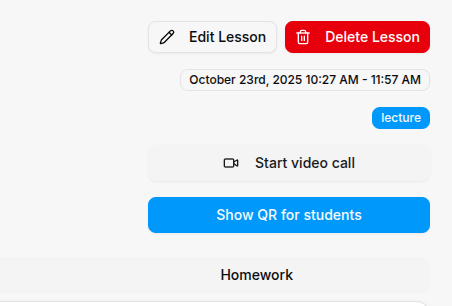
- In the lesson details page, click the QR Code tab.
- Click Generate QR Code to create a new attendance code.
- Display the QR code on your screen or projector for students to scan.
- Monitor the attendance list as students scan the code.
- The attendance is automatically saved when students scan successfully.
QR Code Security
QR codes expire after a short time for security. If students can't scan the code, generate a new one during the lesson.
For Students: Scan QR Code to Mark Attendance
- Navigate to your Attendance page from the sidebar.
- Click Scan QR Code button.
- Allow camera access when prompted by your browser.
- Point your camera at the QR code displayed on the teacher's screen.
- Wait for the confirmation message that your attendance has been recorded.
- Your attendance is automatically saved and synced.
Offline Support
If you don't have internet connection, your scan is saved on your device and will automatically sync when you go back online.
For Organization Types
- Use QR codes for coding session attendance.
- Students can scan codes from their laptops or mobile devices.
- Track attendance for different coding workshops and projects.
- Generate QR codes for training sessions and matches.
- Athletes can quickly mark attendance before practice.
- Track attendance for different sports and training programs.
- Use QR codes for daily lesson attendance.
- Students can scan codes for Quran classes and regular subjects.
- Monitor attendance for both religious and academic sessions.
Troubleshooting
QR Code Not Scanning
For Students:
- Allow Camera Access: Ensure your browser has permission to access the camera.
- Improve Positioning: Move closer to the QR code and center it in your camera view.
- Better Lighting: Improve lighting conditions and avoid screen glare or shadows.
- Request New Code: Ask the teacher to generate a fresh QR code if the current one isn't working.
For Teachers:
- Refresh the Code: Generate a new QR code if students report scanning issues.
- Check Display: Ensure the QR code is clearly visible and not distorted on your screen.
- Stable Connection: Make sure you have a stable internet connection for code generation.
Offline Sync Issues
For Students:
- Connect to Internet: Ensure you have internet connectivity.
- Keep App Open: Leave the attendance page open for a moment to allow sync to complete.
- Check Sync Status: Look for sync indicators or confirmation messages.
For Teachers:
- Verify Internet: Ensure stable internet connection for real-time attendance updates.
- Refresh Page: Refresh the lesson page to see the latest attendance data.
Invalid or Expired Code
- Request New Code: Ask the teacher to generate a new QR code.
- Check Timing: QR codes expire for security - ensure you're scanning within the valid time window.
- Verify Lesson: Make sure you're scanning the correct QR code for the current lesson.
Tips
- Backup Method: Keep traditional attendance methods as backup in case of technical issues.
- Student Preparation: Ensure students have camera permissions enabled before starting.
- Code Visibility: Display QR codes large enough for easy scanning from across the room.
- Regular Refresh: Generate new QR codes periodically during long lessons for security.
- Monitor Attendance: Regularly check attendance lists to ensure all students have scanned successfully.
- Internet Backup: Have a backup internet connection ready for teachers in case of connectivity issues.
- Student Guidance: Provide clear instructions to students on how to scan QR codes.
- Test Before Class: Test QR code generation and scanning before important lessons.