Student Dashboard & Features
Complete guide to using the EduSoft platform as a student - view grades, attendance, schedule, and access all student features.
The Student Dashboard provides access to all your academic information, schedule, grades, attendance records, and platform features in one centralized location.
Your Academic Hub
Access everything you need as a student from one central dashboard - your schedule, grades, attendance, homework, and all academic activities.
- Why this matters: Stay informed about your academic progress, track attendance, view schedules, and access learning materials.
- Who uses it: All students enrolled in the organization.
- When to use it: Daily to check your schedule, weekly to review grades and attendance, and as needed for homework and assignments.
How to Use
Logging In as a Student
Passwordless Login with Code
- From the Landing Page (homepage), click the Login button.
- Click "Sign in with a code" link at the bottom of the login page.

- Enter your Email Address.
- Click Send Code.
- Check your email for a 6-digit verification code.
- Enter the code in the verification field.
- Click Verify to access your dashboard.
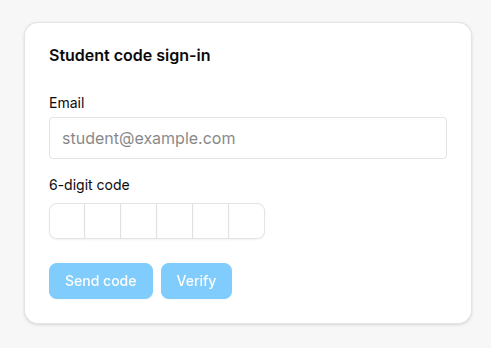
Student Code Login
The passwordless code login is a quick and secure way to access your account without remembering a password. The code is sent directly to your email.
For detailed login instructions, see: Authorization Guide
Accessing Your Dashboard
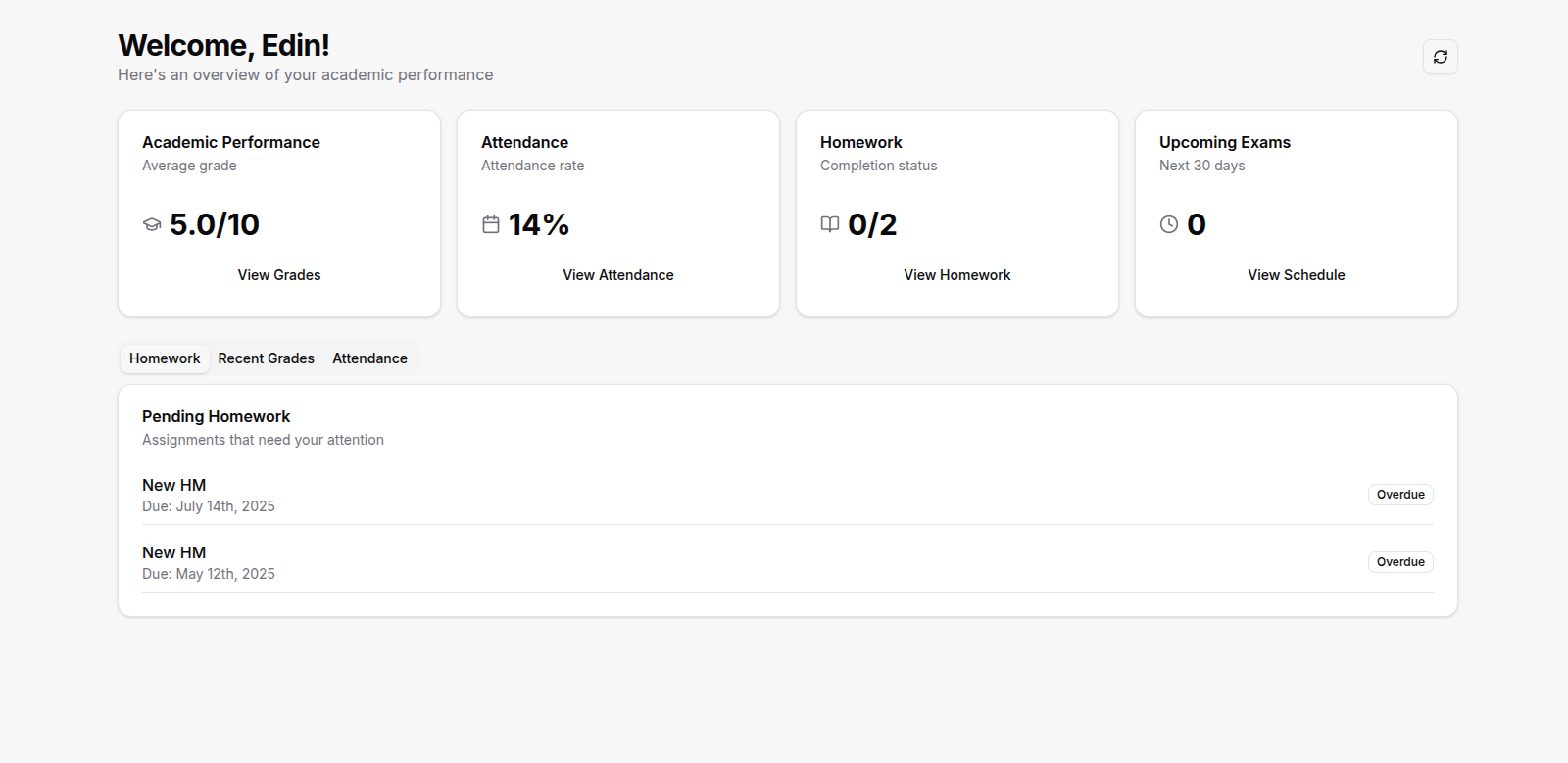
- After logging in, you are automatically redirected to your Student Dashboard.
- View your key information at a glance:
- Current Schedule - Today's classes and lessons
- Recent Grades - Latest grade updates
- Attendance Status - Your attendance record
- Upcoming Assignments - Homework and deadlines
Viewing Your Schedule
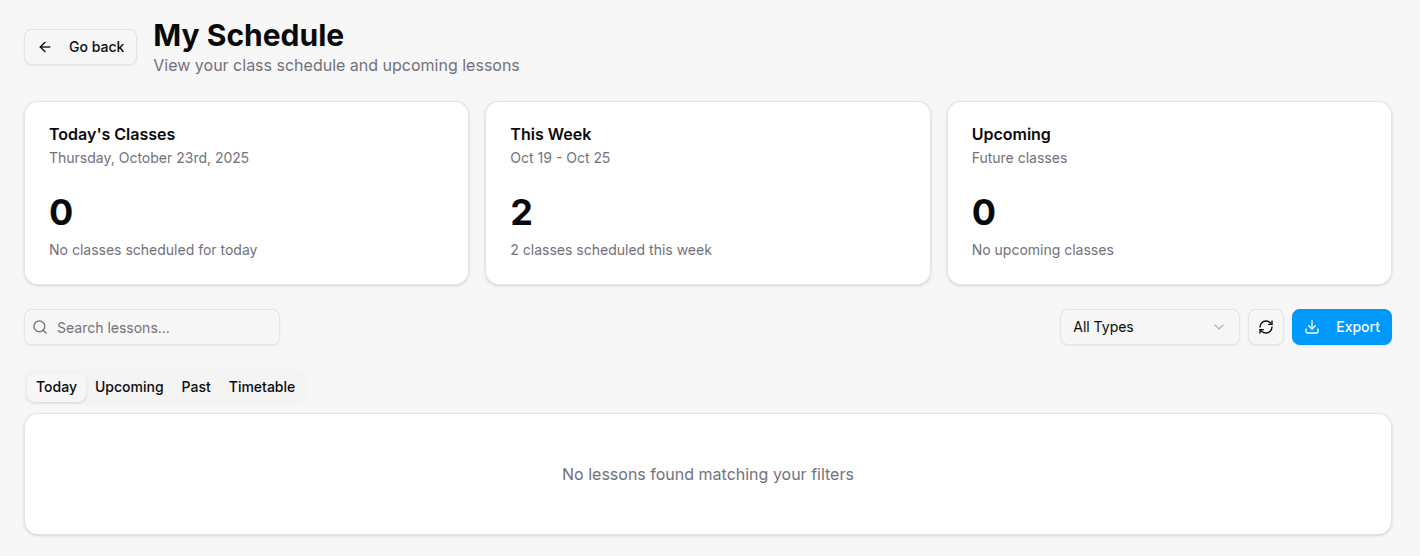
- Navigate to My Schedule from the sidebar or dashboard.
- View your classes in different formats:
- Daily View - Today's schedule with times and locations
- Weekly View - Full week overview
- Monthly View - Monthly calendar with all classes
- See class details including:
- Subject and Teacher
- Start and End Times
- Classroom Location
- Class Status (Active, Completed, Cancelled)
Checking Your Grades
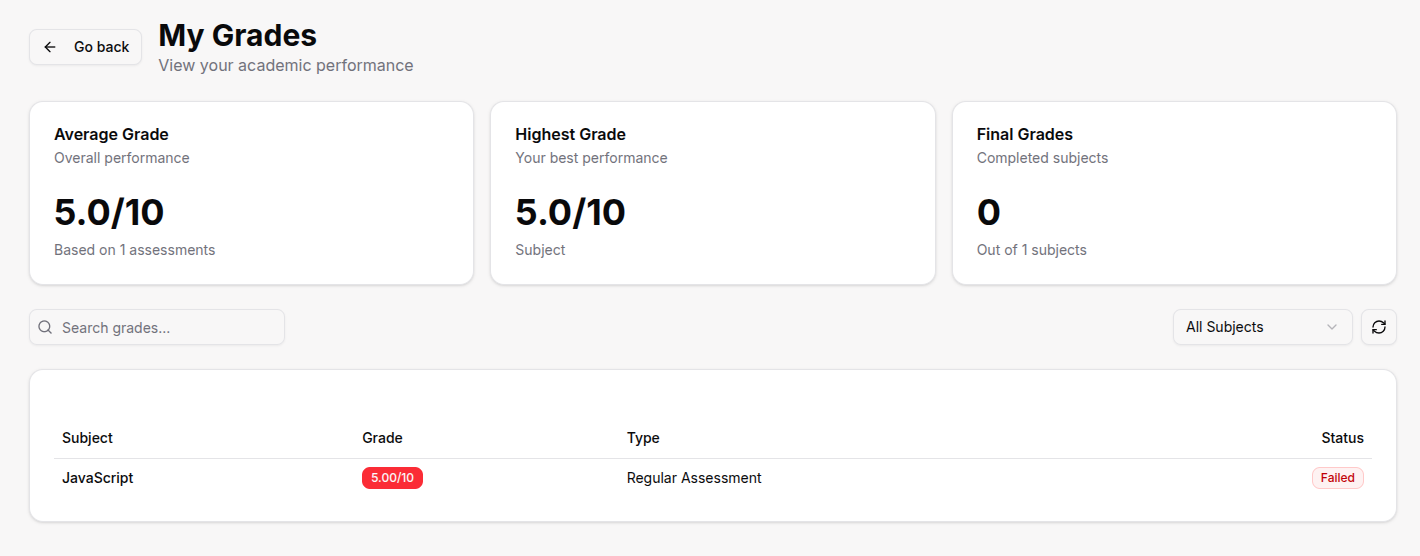
- Navigate to My Grades from the sidebar.
- View your academic performance:
- Grades by Subject - All your subjects with current grades
- Grade History - Track your progress over time
- Assignment Grades - Individual assignment scores
- Overall Average - Your cumulative GPA or average
- Filter by:
- Specific Subject - Focus on one subject
- Date Range - View grades from specific periods
- Grade Type - Homework, quizzes, exams, projects
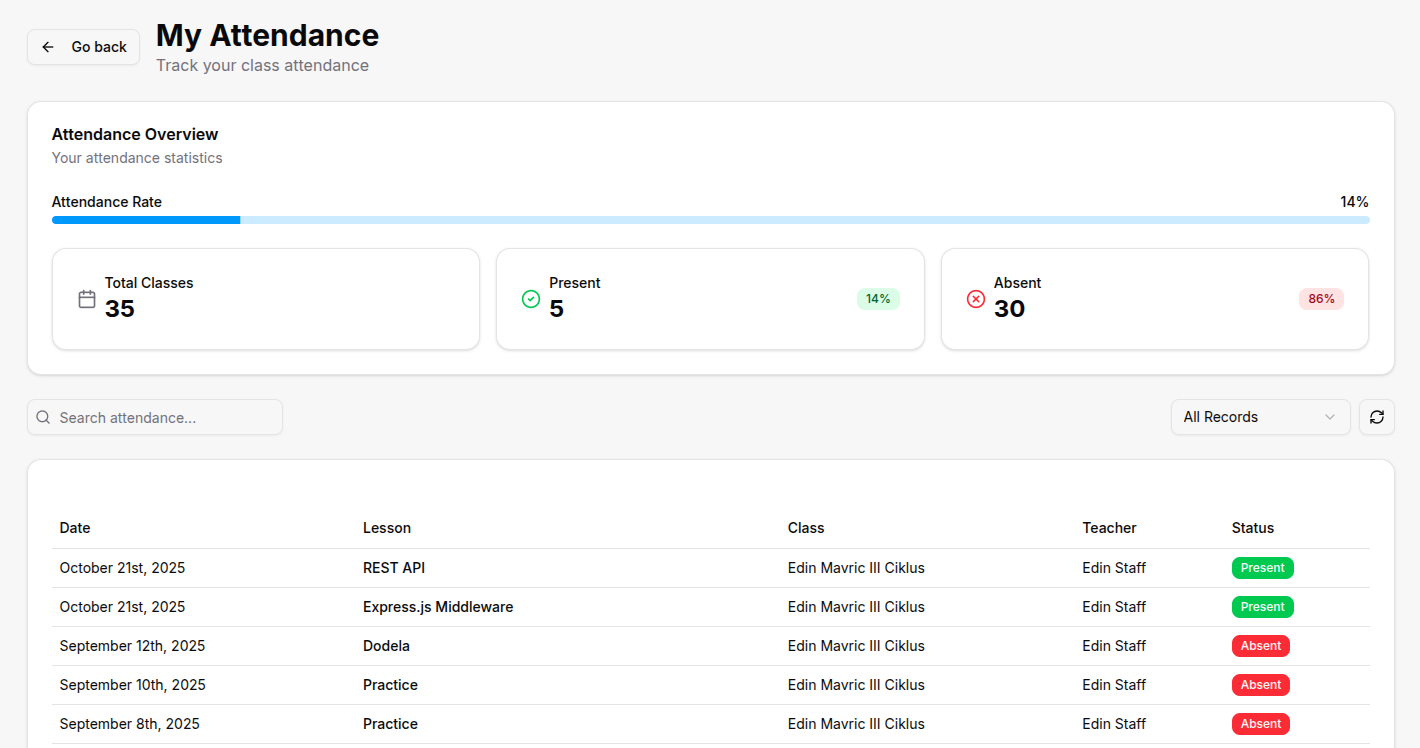
Tracking Your Attendance
- Navigate to My Attendance from the sidebar.
- View your attendance records:
- Overall Attendance Rate - Percentage of classes attended
- Attendance by Subject - Subject-specific attendance
- Absence Details - Dates and reasons for absences
- Attendance Trends - Monthly attendance patterns
- See attendance status for each class:
- Present ✓ - You attended the class
- Absent ✗ - You were marked absent
- Excused - Absence was excused with valid reason
Accessing Homework and Assignments
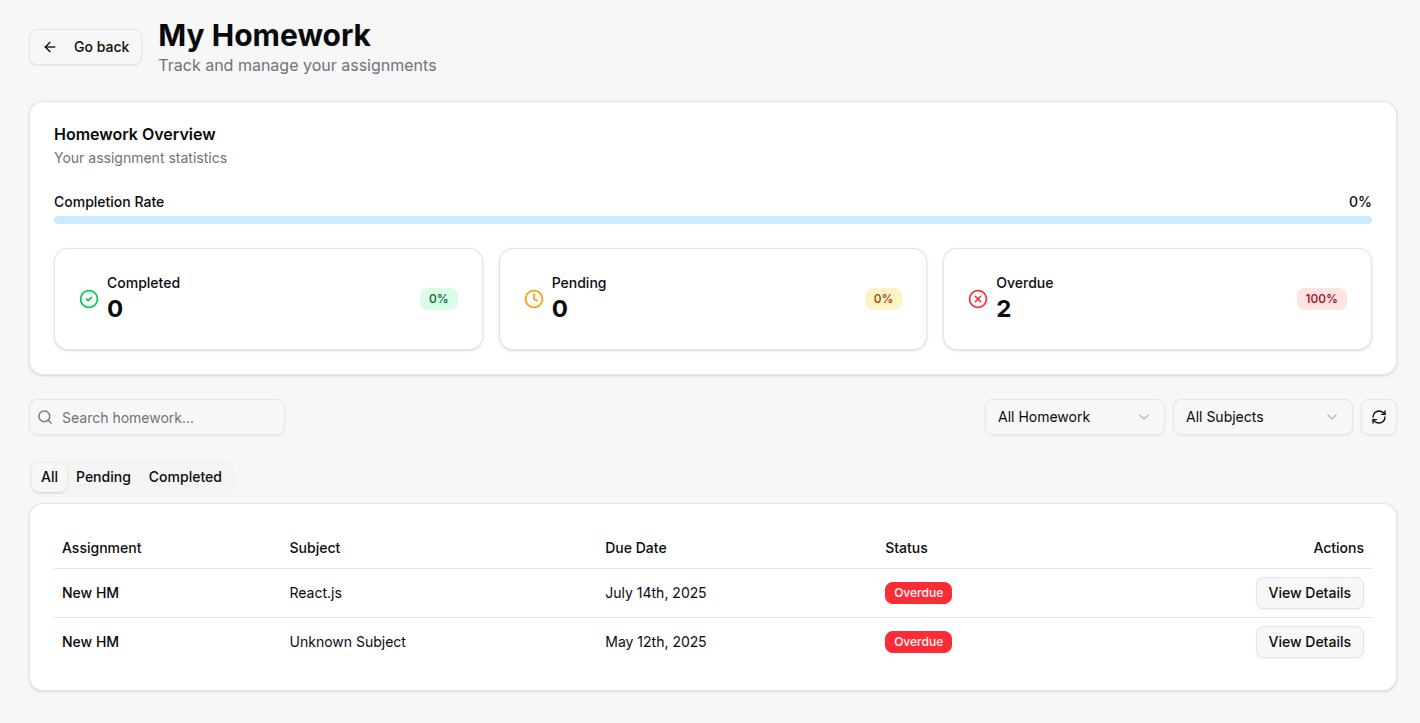
- Navigate to My Homework from the sidebar.
- View all your assignments:
- Pending Assignments - Work that needs to be completed
- Completed Assignments - Work you've finished
- Assignment Details - Instructions, due dates, and requirements
- Submission Status - Whether you've submitted your work
- Track assignment deadlines and completion status.
Using QR Code Attendance
Quick Attendance Check-in
Use QR codes to quickly mark your attendance during lessons without manual sign-in processes.
- Navigate to Attendance from the sidebar.
- Click Scan QR Code when your teacher displays the QR code.
- Allow camera access when prompted by your browser.
- Point your camera at the QR code displayed by your teacher.
- Wait for the confirmation message that your attendance has been recorded.
- Your attendance is automatically saved and synced.
Offline Attendance
If you don't have internet connection, your scan is saved on your device and will automatically sync when you go back online.
For more detailed information about QR Code attendance, see: QR Code Attendance System
Viewing Your Profile
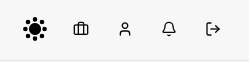
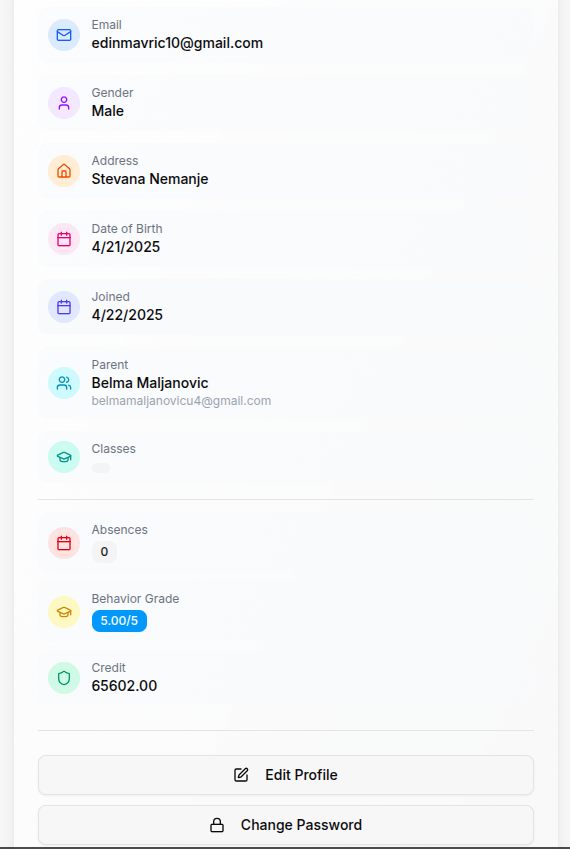
- Navigate to My Profile from the right side of top navbar.
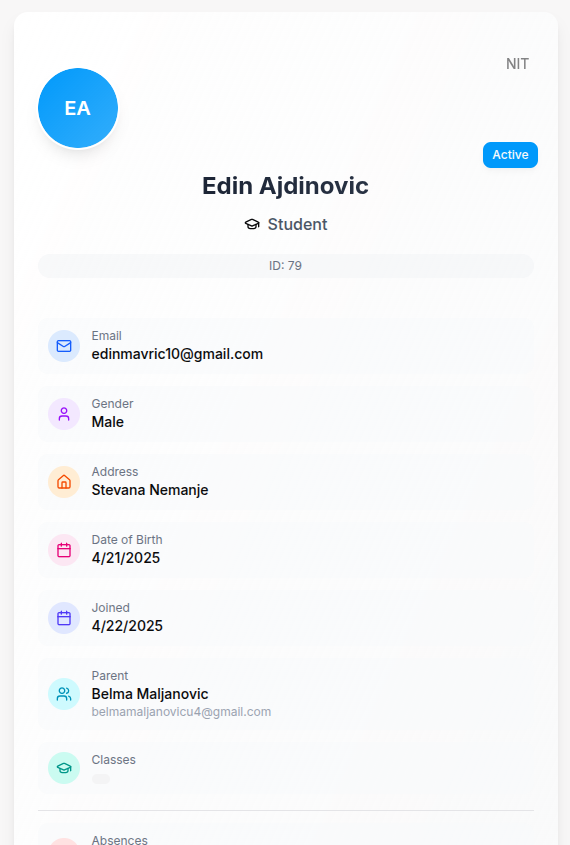
- View and update your information:
- Personal Details - Name, email, contact information
- Academic Information - Class, subjects, enrollment date
- Emergency Contacts - Parent or guardian information
- Preferences - Notification settings, language preferences
Accessing Learning Materials
- Navigate to Learning Materials from the sidebar (if available).
- Access educational resources:
- Course Materials - Documents, presentations, and resources
- Video Lessons - Recorded lessons and tutorials
- Assignments - Homework and project materials
- Reference Materials - Study guides and additional resources
Viewing Notifications
- Check the Notifications icon in the top navigation.
- View important updates:
- Grade Updates - New grades posted
- Assignment Reminders - Upcoming deadlines
- Schedule Changes - Class cancellations or rescheduling
- Attendance Alerts - Attendance-related notifications
- General Announcements - Important school announcements
Contacting Teachers
- Navigate to Contact Teachers from the sidebar (if available).
- Send messages to your teachers:
- Subject-specific Questions - Ask about assignments or lessons
- General Inquiries - Request clarification or help
- Schedule Concerns - Discuss attendance or scheduling issues
- View message history and teacher responses.
Viewing Academic Reports
- Navigate to Reports from the sidebar (if available).
- Access comprehensive reports:
- Academic Progress Report - Overall performance summary
- Attendance Report - Detailed attendance analysis
- Subject Performance - Performance by subject
- Term Reports - End-of-term academic summaries
Mobile Access
Mobile-Friendly Platform
Access all student features from your mobile device with the same functionality as desktop.
- Use any modern web browser on your mobile device.
- Navigate to your organization's EduSoft platform URL.
- Log in with your student credentials.
- All features are optimized for mobile use:
- Touch-friendly interface - Easy navigation with touch
- Responsive design - Adapts to different screen sizes
- QR Code scanning - Use your device's camera for attendance
- Mobile notifications - Receive updates on your device
For Organization Types
IT Bootcamp student features:
- Coding Challenges - Access programming exercises and assessments
- Portfolio Tracking - View and manage your coding portfolio
- GitHub Integration - Link your GitHub account for project tracking
- Technical Assessments - Take coding tests and skill evaluations
- Project Submissions - Submit coding projects and assignments
- Video Lesson Recordings - Access recorded coding sessions
Sports Academy student features:
- Training Schedules - View practice and training sessions
- Performance Tracking - Monitor athletic progress and test results
- Health Records - Access your health and medical information
- Competition Schedules - View upcoming games and tournaments
- Equipment Assignments - Check assigned sports equipment
- Training Materials - Access training guides and resources
Madrasa student features:
- Quran Progress - Track your memorization (Hifz) progress
- Recitation Practice - Access audio and practice materials
- Islamic Studies - View religious education materials
- Arabic Learning - Access Arabic language resources
- Prayer Schedules - View integrated prayer times
- Religious Assignments - Submit Islamic studies homework
Tips
- Check your dashboard daily to stay updated on schedule changes and new assignments.
- Use QR code attendance for quick and accurate attendance tracking.
- Review grades regularly to track your academic progress and identify areas for improvement.
- Keep your profile updated with current contact information for important communications.
- Access learning materials promptly when assignments are posted to avoid delays.
- Use mobile access when you're away from your computer to stay connected.
- Check notifications regularly to stay informed about important updates and deadlines.
- Contact teachers if you have questions about assignments or need clarification.
- Track attendance carefully to maintain good attendance records.
- Use the platform consistently to get the most out of your educational experience.
Troubleshooting
Can't Access Your Account
- Check credentials - Ensure you're using the correct username and password
- Contact support - Reach out to your teacher or administrator for help
- Password reset - Use the password reset feature if available
QR Code Not Scanning
- Allow camera access - Ensure your browser has permission to access the camera
- Improve lighting - Make sure there's adequate light for scanning
- Move closer - Position your device closer to the QR code
- Request new code - Ask your teacher for a fresh QR code if needed
Missing Grades or Information
- Refresh the page - Click the refresh button to reload the latest data
- Check date filters - Ensure you're viewing the correct time period
- Contact teacher - Reach out if you believe information is missing
Mobile Issues
- Update browser - Ensure you're using a current web browser
- Check internet connection - Verify you have a stable internet connection
- Clear cache - Clear your browser cache if experiencing issues
Related Articles
Need Help?
If you need assistance with any student features:
- Contact your teacher - They can help with academic-related questions
- Reach out to administrators - For technical issues or account problems
- Check the help section - Look for additional resources in your dashboard
- Use the platform help - Access built-in help features if available
Remember: The EduSoft platform is designed to support your learning journey. Don't hesitate to ask for help when you need it!