Authorization & Authentication
Complete guide to logging in, signing up, resetting passwords, and verifying your email on the EduSoft platform.
This guide covers all authentication workflows on the EduSoft platform, including standard login, social login, password reset, email verification, and student passwordless login.
- Why this matters: Securely access your account with multiple authentication methods designed for different user roles and security needs.
- Who uses it: All users (Admins, Teachers, Students, Parents, Secretaries, Coordinators).
- When to use it: First-time setup, daily login, password recovery, or when your organization requires additional verification.
How to Use
Standard Login with Email and Password
Standard login is available for all user roles.
- From the Landing Page (homepage), click the Login button in the top right corner.
- Enter your Email Address in the email field.
- Enter your Password in the password field.
- Click the Login button.
- If MFA is enabled, enter the 6-digit code from your authenticator app when prompted.
- You will be redirected to your role-specific dashboard (Admin, Teacher, Student, etc.).
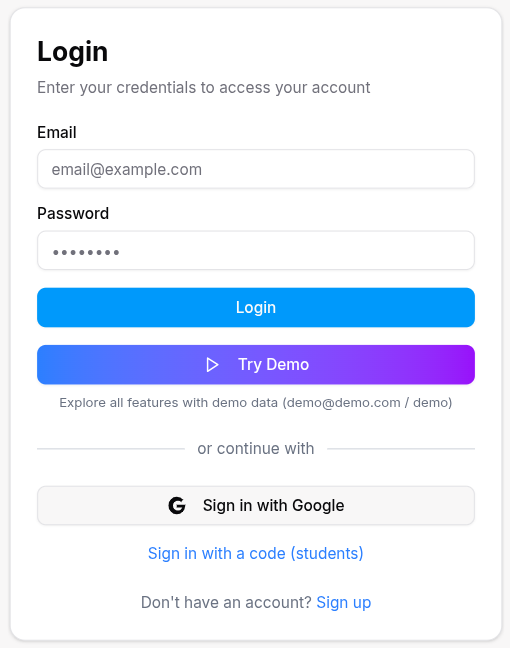
Email Prefill
If you access the login page from a password reset or email verification link, your email address will be automatically prefilled.
Login with Google (Social Login)
Social login allows you to sign in using your Google account without entering a password.
- From the Landing Page (homepage), click the Login button in the top right corner.
- Click the Sign in with Google button.
- Select your Google account from the popup window.
- Grant permissions if prompted.
- You will be automatically logged in and redirected to your dashboard.

Google Account Required
Your Google account email must match the email address registered in the EduSoft system. If you don't have an account yet, use the Sign Up flow first.
Demo Mode Login
Demo mode allows you to explore the platform without creating an account.
- From the Landing Page (homepage), click the Login button in the top right corner.
- Click the Try Demo button.
- You will be logged in as a demo user with limited access.
- Explore the platform features without affecting real data.

Demo Limitations
Demo mode shows sample data and has restricted access. Changes are not saved permanently.
Student Passwordless Login (Code-Based)
Students can sign in using a passwordless code sent to their email.

- From the Landing Page (homepage), click the Login button in the top right corner.
- Click the Sign in with a code link at the bottom of the page.
- Enter your Email Address.
- Click Send Code.
- Check your email for a 6-digit verification code.
- Enter the code in the verification field.
- Click Verify to access your dashboard.
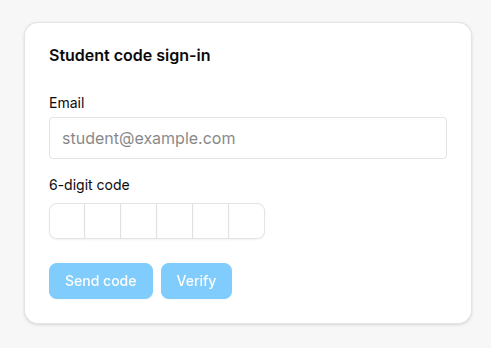
Email Prefill
If you access the student login page from the main login page with an email already entered, it will be automatically prefilled.
Password Reset Flow
Step 1: Request Password Reset

- From the Landing Page (homepage), click the Login button in the top right corner.
- Click the Forgot Password link below the password field.
- Enter your Email Address.
- Click Send Reset Email.
- Check your email for a password reset link.
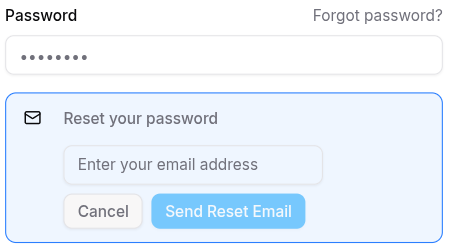
Email Prefill
If you already have an email in the login form, it will be automatically prefilled in the password reset form.
Step 2: Set New Password
After clicking the reset link in your email:
- You will be redirected to the Set Password Page with reset parameters.
- Enter your New Password (minimum 8 characters).
- Enter Confirm Password to verify it matches.
- Click Set Password.
- You will be redirected to the login page.
- Log in with your new password.
Link Expiration
Password reset links expire after a certain time. If your link is invalid or expired, request a new reset link from the Forgot Password page.
Email Verification Flow
During Account Setup by Admin
When an admin creates your account:
- You will receive an email with login instructions.
- Your email address will be prefilled when you access the login page.
- If email verification is required, a verification code will be automatically sent to your email.
- Enter the 6-digit code from your email.
- Click Verify.
- You will be redirected to the login page with your email prefilled.
- Log in with your admin-provided credentials.
Manual Email Verification
If you need to verify your email later:
- From the Landing Page (homepage), click the Login button in the top right corner.
- If you haven't verified your email and try to log in, an alert will appear below the login form.
- Click Resend Verification Email in the alert.
- You will be redirected to the email verification page.
- Enter your Email Address.
- Click Send Code.
- Check your email for a 6-digit verification code.
- Enter the code in the verification field.
- Click Verify.
Resend Verification Email from Login
If you haven't verified your email and try to log in:
- An alert message will appear below the login form.
- Click Resend Verification Email.
- Check your email for the verification code.
- You will be automatically redirected to the email verification page where you can enter the code.
Automatic Redirect
After successful verification, you will be automatically redirected to the login page with your email prefilled.
Organization Sign Up Flow
Create a New Organization
The Sign Up feature is used by organizations to create their EduSoft account, not by individual users to create personal accounts.
- From the Landing Page (homepage).
- Click the Sign Up button in the top right corner.
- Fill in the organization details:
- Email Address (organization admin email)
- Organization Name
- Admin First Name
- Admin Last Name
- Password (minimum 8 characters)
- Confirm Password (must match password)
- Click Sign Up.
- You will be automatically redirected to the email verification page.
- Verify your email using the code sent to your inbox.
- After verification, return to the login page and sign in as the organization admin.
Individual User Accounts
Individual users (students, teachers, parents, etc.) are created by admins through the HR management system. Users log in with credentials provided by their organization admin.
Multi-Factor Authentication (MFA)
If MFA is enabled for your account:
- After entering your email and password, click Login.
- An MFA prompt will appear instead of the standard login form.
- Open your authenticator app (Google Authenticator, Authy, etc.).
- Enter the 6-digit code from your authenticator app.
- Click Verify.
- You will be logged in and redirected to your dashboard.
MFA Security
Multi-factor authentication adds an extra layer of security by requiring something you know (password) and something you have (authenticator app).
Password Requirements
When creating or resetting your password:
- Minimum Length: 8 characters
- Recommended: Mix of uppercase and lowercase letters, numbers, and special characters
- Security: Avoid using common words or personal information
For Organization Types
- Students and teachers can use GitHub integration for login.
- Passwordless login is recommended for students to reduce password management overhead.
- Demo mode allows exploring coding features without committing to enrollment.
- Standard login procedures apply for all users.
- Parents can use social login for easier access to their child's information.
- Students can use passwordless login for quick access to schedules and results.
- Standard login procedures apply for all users.
- Teachers and admins should enable MFA for additional security.
- Students can use passwordless login for accessing lessons and homework.
Tips
- Save Your Password: Use a secure password manager to store your credentials.
- Enable MFA: For added security, enable multi-factor authentication in your profile settings.
- Check Email: Always check your spam folder if you don't receive verification or reset emails.
- Session Timeout: Your session will automatically timeout after 30 minutes of inactivity for security.
- Student Code Login: Use the passwordless code login for quicker access without remembering passwords.
- Google Login: Use social login if you have trouble remembering passwords.
- Link Expiration: Password reset and verification links expire for security. Request new ones if needed.
- Email Verification: You must verify your email before accessing full platform features.
- Demo Mode: Try demo mode to explore the platform before creating an account.
Troubleshooting
Forgot Password Link Not Working
- Check if the link has expired (request a new one).
- Ensure you clicked the link within the email (copy-paste may not include all parameters).
- Verify you're using the correct email address.
Email Verification Code Not Received
- Check your spam/junk folder.
- Wait a few minutes and click "Resend Code".
- Verify your email address is correct.
- Contact support if the issue persists.
Can't Log In After Password Reset
- Ensure you're using the new password you just set.
- Wait a few seconds for the system to update.
- Try logging in again or request another reset link.
MFA Code Not Working
- Ensure your device's time is synchronized correctly.
- Check that you're entering the correct code from your authenticator app.
- Request a new MFA code if needed.
Social Login Not Working
- Ensure your Google account email matches your EduSoft account.
- Clear your browser cache and cookies.
- Try logging in with email and password instead.