Secretary Dashboard
Financial tracking and student management access for secretaries with limited system permissions.
The Secretary Dashboard provides access to essential financial tracking and student management functions. Secretaries can view and manage payments, students, teachers, classes, and attendance records to support day-to-day operations and financial oversight.
Limited Access Role
Secretaries have restricted access to only: Payments, Classes, Students, Attendance, and Teachers. This focused access ensures they can perform their essential duties while maintaining appropriate system security.
- Why this matters: Provides essential access for financial tracking, student management, and operational support without exposing sensitive administrative functions.
- Who uses it: Secretaries and office staff responsible for payment processing, student records, and class management.
- When to use it: Daily operations including payment recording, student enrollment updates, teacher assignments, and attendance tracking.
Important
For detailed instructions on how to create, edit, search, filter, and manage data through tables, please refer to the Tables Guide. All pages use the same table interface with consistent actions and features.
How to Use
Payments (Primary Focus)
- Navigate to Payments from the sidebar.
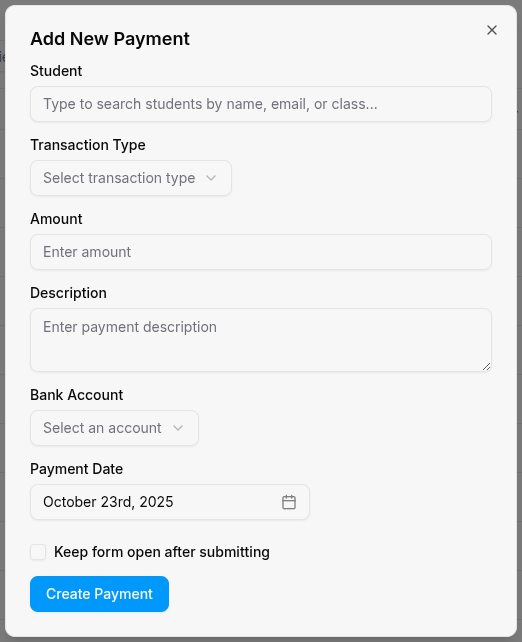
- Add a Payment: Click Add Payment and enter:
- Student name
- Payment amount
- Payment date
- Payment method
- Description/notes
- Edit Payments: Select a row and click Edit to modify payment details.
- Search and Filter: Use filters by student, date, amount, or payment status.
- Export: Download payment records for accounting or reporting purposes.
Financial Tracking Focus
Payments are the primary focus for secretaries. Keep accurate records of all student payments, fees, and financial transactions.
Students
- Navigate to Students from the sidebar.
- View Student Records: Access student information, contact details, and enrollment status.
- Update Information: Edit student contact details, addresses, and basic information.
- Class Assignments: View and update student class enrollments.
- Search and Filter: Find students by name, class, or enrollment status.
Teachers
- Navigate to Teachers from the sidebar.
- View Teacher Records: Access teacher information, contact details, and qualifications.
- Class Assignments: Review which classes teachers are assigned to.
- Update Information: Edit teacher contact details and basic information.
- Search and Filter: Find teachers by name, subject, or class assignment.
Classes
- Navigate to Classes from the sidebar.
- View Class Details: Access class information, schedules, and enrollment.
- Manage Enrollment: Add or remove students from classes.
- Teacher Assignments: View and update teacher assignments to classes.
- Edit Class Information: Update class names, schedules, and basic details.
Attendance
- Navigate to Attendance from the sidebar.
- View Attendance Records: Access student attendance history and patterns.
- Monitor Attendance: Track attendance rates and identify students with attendance issues.
- Search and Filter: Find attendance records by student, class, or date range.
- Export Reports: Download attendance reports for administrative purposes.
For Organization Types
- Track coding bootcamp tuition payments and project fees.
- Monitor student enrollment in different coding programs.
- Track attendance for coding sessions and workshops.
- Manage teacher assignments for technical subjects.
- Process athletic program fees and equipment payments.
- Track student enrollment in sports programs and teams.
- Monitor training session attendance.
- Manage coach assignments to different sports teams.
- Process religious education fees and material costs.
- Track student enrollment in Quran and Islamic studies classes.
- Monitor attendance for religious and academic sessions.
- Manage teacher assignments for religious and secular subjects.
Tips
- Focus on Financial Accuracy: Double-check all payment entries for accuracy.
- Regular Updates: Keep student and teacher information current and up-to-date.
- Use Filters: Utilize search and filter functions to quickly find specific records.
- Export Regularly: Download important data for backup and reporting purposes.
- Bulk Actions: Use bulk operations when updating multiple records to save time.
- Communication: Coordinate with teachers and administrators when making class changes.