Notifications & Messaging System
Manage system notifications, bulk messaging, templates, and communication with users using the notification builder.
The Notifications & Messaging System allows administrators to send messages to users when important events occur, such as when students miss consecutive lessons. This system provides tools for creating message templates and sending personalized messages via email, SMS, or WhatsApp to keep users informed about important updates and events.
Automated Communication
The notification system automatically detects when students miss consecutive lessons and allows administrators to send personalized messages using pre-built templates. Messages can be sent via email, SMS, or WhatsApp to reach users through their preferred communication method.
- Why this matters: When students miss consecutive lessons, it's important to notify them and their families quickly to address attendance issues and ensure academic success.
- Who uses it: Administrators who need to communicate with students and parents about missed lessons and other important events.
- When to use it: When the system detects that a student has missed consecutive lessons, administrators can send personalized messages using the notification builder.
How to Use
When Students Miss Consecutive Lessons
Automatic Detection:
- The system automatically detects when a student misses consecutive lessons
- Administrators receive a notification about the missed lessons
- The system provides access to send personalized messages to the student and their family
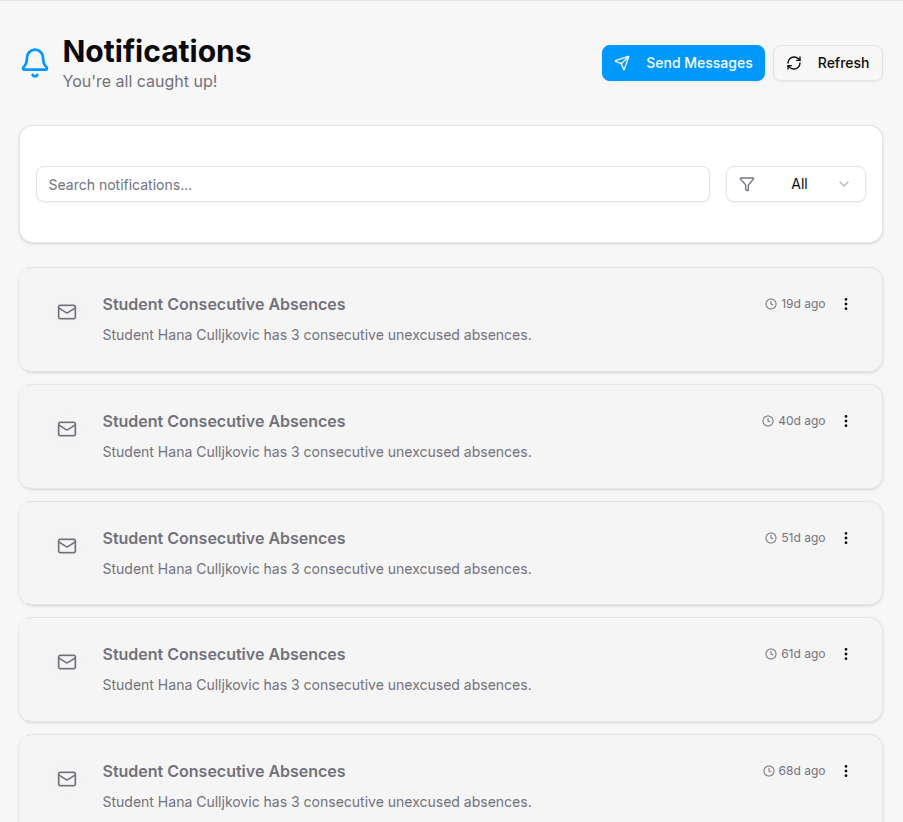
Sending Messages for Missed Lessons:
- Navigate to Notifications (🔔) in the top right nav menu.

- Click "Send messages" to access the notification builder.
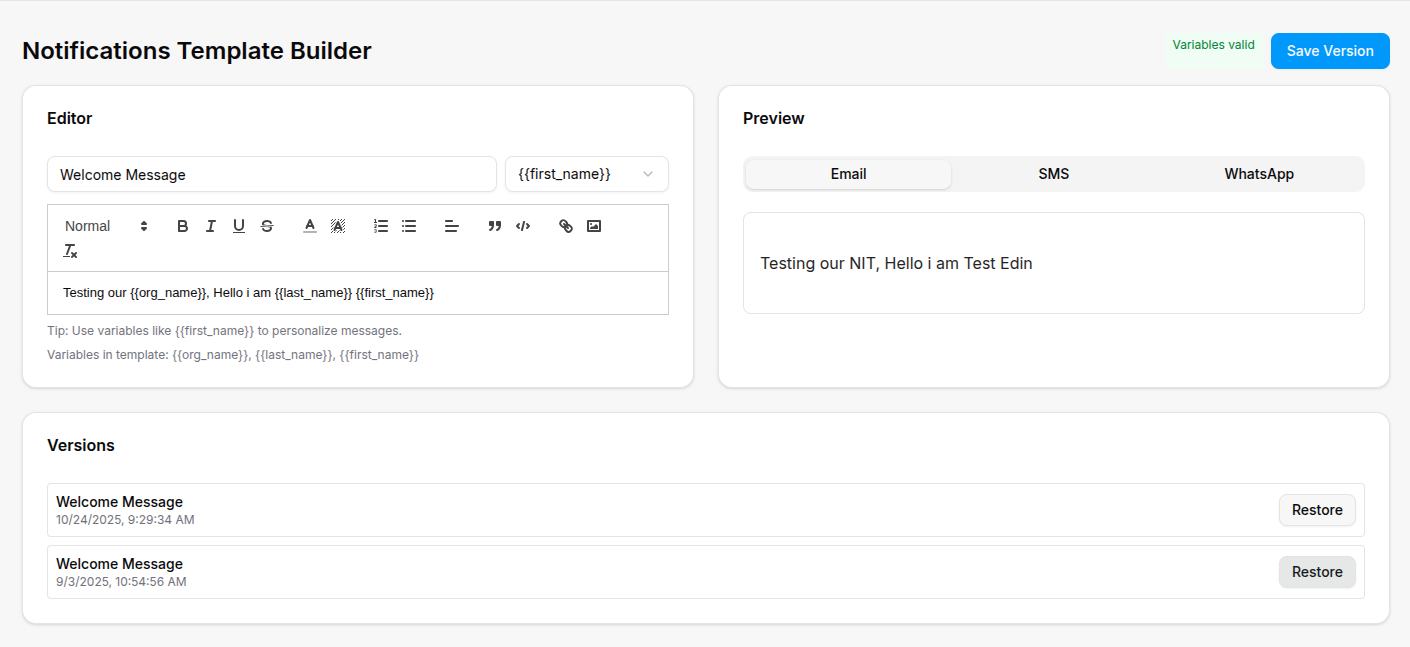
- Message Template Selection: Choose from pre-built templates or create a new message
- Personalization: The system automatically fills in the currently logged in administrator's information using variables:
{first_name}- Currently logged in administrator's first name{last_name}- Currently logged in administrator's last name{email}- Currently logged in administrator's email address{org_name}- Organization name (e.g., "Centar NIT")
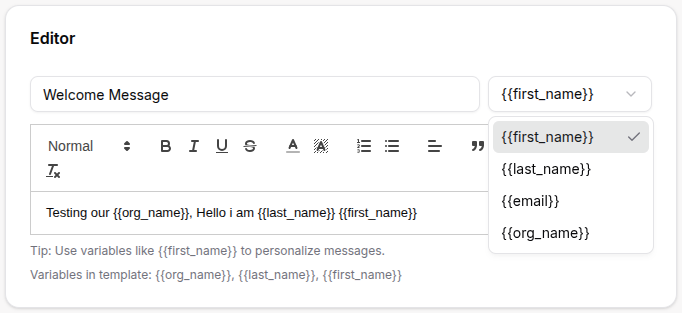
- Message Channels: Choose how to send the message:
- Email: Send via email to the student's email address
- SMS: Send via text message to the student's phone number
- WhatsApp: Send via WhatsApp (if phone number is available)
- Send Message: Click to send the personalized message to the student
Message Template Builder
Creating Message Templates:
- Template Design:
- Title: Give your template a descriptive name (e.g., "Missed Lessons Reminder")
- Message Content: Write your message using variables for personalization
- Variables: Use variables like
{first_name},{last_name},{email},{org_name}for personalization
- Template Preview: Preview how the template will look with sample data
- Save Version: Click "Save Version" to save the template under the title so you can always continue from it and send it to other people
Template Variables Explained:
{first_name}: Automatically replaced with the currently logged in administrator's first name{last_name}: Automatically replaced with the currently logged in administrator's last name{email}: Automatically replaced with the currently logged in administrator's email address{org_name}: Automatically replaced with your organization's name
Example Template:
Hello, I am {first_name},
Nice to have you abroad at {org_name}.
Welcome to our community!
Best regards,
{org_name} Team
When sent by an administrator named "Sarah Johnson", this becomes:
Hello, I am Sarah,
Nice to have you abroad at Centar NIT.
Welcome to our community!
Best regards,
Centar NIT Team
Message Channels
Email Messages:
- Messages sent to student's email address
- Rich text formatting available
- Professional appearance with organization branding
SMS Messages:
- Text messages sent to student's phone number
- Short, concise messages recommended
- Immediate delivery for urgent notifications
WhatsApp Messages:
- Messages sent via WhatsApp to student's phone number
- Personal and direct communication
- Requires phone number to be available in student's profile
For Organization Types
- Technical Updates: Notify students about new coding challenges and technical resources
- Career Opportunities: Send job alerts and career development notifications
- Project Deadlines: Remind students about project submission deadlines
- Industry News: Share relevant tech industry news and updates
- Portfolio Reviews: Notify students about portfolio review sessions
- Technical Workshops: Announce coding workshops and technical sessions
- Training Updates: Notify athletes about training schedule changes and updates
- Competition Alerts: Send notifications about upcoming competitions and events
- Health Reminders: Remind athletes about health checkups and medical requirements
- Performance Updates: Share performance metrics and improvement suggestions
- Equipment Notices: Notify about equipment maintenance and availability
- Team Announcements: Send team-specific announcements and updates
- Religious Events: Notify about religious holidays, events, and observances
- Prayer Reminders: Send prayer time reminders and Islamic calendar updates
- Memorization Progress: Update parents about their children's Quran memorization progress
- Community Events: Announce community events and religious gatherings
- Religious Education: Share Islamic educational content and resources
- Spiritual Guidance: Send spiritual guidance and religious reminders
Tips
- Use Templates: Create reusable templates for missed lessons and other common scenarios to save time
- Personalize Messages: Use variables like
{first_name}and{org_name}to make messages more personal and professional - Choose the Right Channel: Use email for detailed messages, SMS for urgent reminders, and WhatsApp for personal communication
- Preview Before Sending: Always preview messages in different channels to ensure they look correct
- Keep Messages Clear: Write clear, concise messages that communicate the essential information effectively
- Save Template Versions: Save different versions of templates so you can restore previous versions if needed
- Test Variables: Make sure all variables are valid before sending messages
- Professional Tone: Use a professional but friendly tone in your messages
- Include Contact Information: Always include contact information so students and parents can reach out
- Monitor Delivery: Check message delivery status to ensure important messages reach their recipients