Gradebook
Enter, manage, and track student grades across all your classes and subjects.
The Gradebook provides a smart and interactive grid interface to enter and manage multiple grades for all your students across the subjects you teach. Track performance, quickly add or edit grades, and configure weights and rubrics with visual feedback and intelligent controls.
Comprehensive Grade Management
The gradebook now features interactive badges, multi-grade support per student/subject, instant feedback, and keyboard-friendly smart editing for fast and accurate assessment workflows.
How to Use
Accessing the Gradebook
- Navigate to My Gradebook from the sidebar (under Teaching section).
- The gradebook opens with all your eligible students as rows and your assigned subjects as columns.
- At the top, see the page title and a Refresh button to reload latest data.
- Find two primary panels:
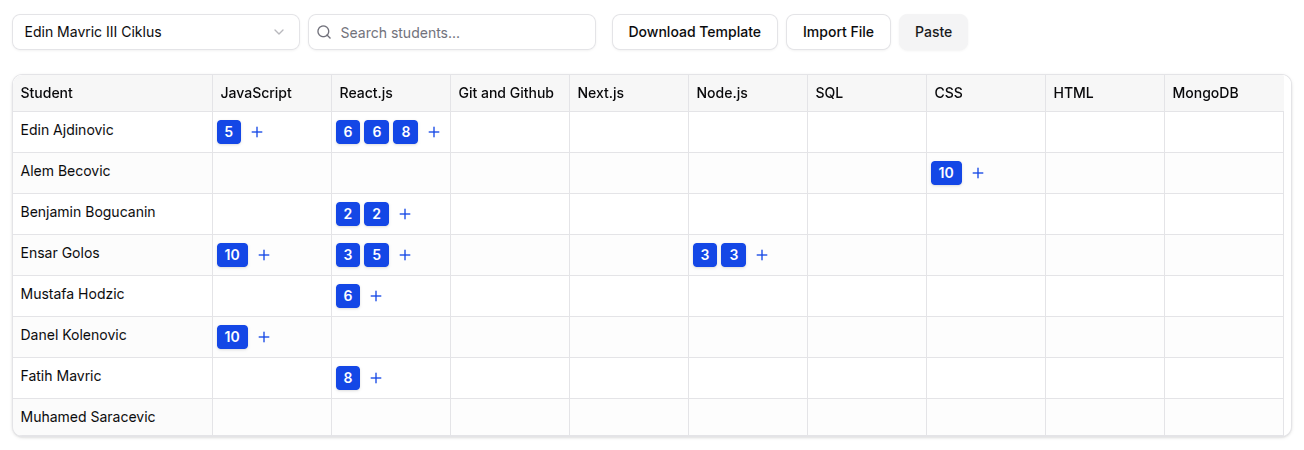
- Gradebook Grid – Interactive table for entering/updating grades
- Weights & Rubrics Panel – Configure grading criteria and rubrics
Understanding the Gradebook Grid
- Each student appears in a separate row.
- Columns show subjects assigned to you.
- Each cell can now contain multiple grades, displayed as clickable badges (e.g.,
8,9). - All grades show as whole numbers (Whole number values only).
- You can:
- Add multiple grades per student/subject
- Edit or delete any grade individually
Adding a New Grade
- Empty Cell:
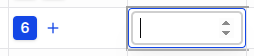
- Click + inside an empty cell. An input field appears, filling the cell.
- Enter the grade (Whole number only).
- Press Enter to save or Escape to cancel.
- Cell With Existing Grades:
- Hover the cell and click the + (plus) icon (not on a badge).
- The large input appears. Enter the new grade and press Enter.
- The new grade badge is added to the existing grade(s) for that student/subject.
Editing or Deleting a Specific Grade
- Click directly on any grade badge within a cell.
- The input appears, pre-filled with that grade’s value.
- Update the value (Whole number only) and press Enter to save, or Escape to cancel.
- To delete a grade:
- Clear the input so it is blank and press Enter; the badge disappears.
Smart Editing
Each grade can be individually edited or removed—no more one-grade-per-cell limitation! Toasts notify you of all grade changes instantly.
Visual Feedback & Navigation
- Grades are shown as bold, primary-colored badges for clarity.
- Hovering a cell with grades displays a + button to add a new grade.
- Keyboard navigation works throughout:
- Tab / Shift+Tab to move cells
- Arrow keys to navigate
- Enter to start editing/adding
- Escape to cancel editing
- Delete/Backspace to clear/delete values in edit mode
- Toast notifications confirm adds, edits, and deletions in real time.
Bulk Importing Grades via CSV
- Find the Bulk CSV Import bar above the grid.
- Prepare your CSV file with columns:
- Student – ID
- Subject – ID
- Grade – Whole number value (each row creates a new grade)
- Click Paste CSV or Import.
- Paste or upload your CSV data.
- Review, then confirm import. Each CSV row becomes a new grade (multi-grade per cell is supported).
- Toast messages indicate success/failure per row.
- Zero/empty grade values will delete, not update, the most recent grade.
Weights, Rubrics, Exporting and Filtering
(These sections remain unchanged, but you can tweak them if your weights/rubrics panels have new UX)
For Organization Types
IT Bootcamp gradebook features: - Project Grades - Grade coding projects and portfolio submissions - Challenge Scores - Track performance on coding challenges - Technical Assessments - Grade skills tests by technology - Code Review Grades - Score quality of code submissions
Sports Academy gradebook features: - Physical Test Scores - Record athletic performance metrics - Skill Development - Track improvement in sport-specific skills - Competition Results - Grade performance in tournaments - Training Effort - Score participation and effort in training
Madrasa gradebook features: - Quran Memorization - Track Hifz progress and accuracy - Recitation Quality - Grade Tajweed and pronunciation - Islamic Studies - Score religious knowledge assessments - Arabic Proficiency - Track language skill development
Tips
- Click badges to edit existing grades: No need to overwrite all grades—just update the one you want.
- Use the + button in a cell to quickly add another grade for a student/subject pair.
- No decimal grades allowed: All grades will be shown and saved as whole numbers only.
- Keyboard navigation and edit/cancel/delete shortcuts make grade entry super fast.
- Watch for toasts: You’ll always know if a grade was added/modified/deleted.
- Use bulk import for adding large numbers of grades across many students/subjects at once.
- Empty cells? Add grades with a single click or tap—no more manual clearing needed before you can enter!