Managing Subjects
View and manage your assigned subjects, connected classes, lessons, and enrolled students.
The Subjects page allows you to view all subjects you're assigned to teach, access subject details, manage your lessons, linked classes, and review enrolled students—all from one central place in your teacher dashboard.
Subject Management Center
Access every subject you're responsible for, track lessons and assignments, and quickly navigate to classes and students, even if you teach multiple subjects and classes.
How to Use
Viewing Your Assigned Subjects
- Navigate to My Subjects using the sidebar.
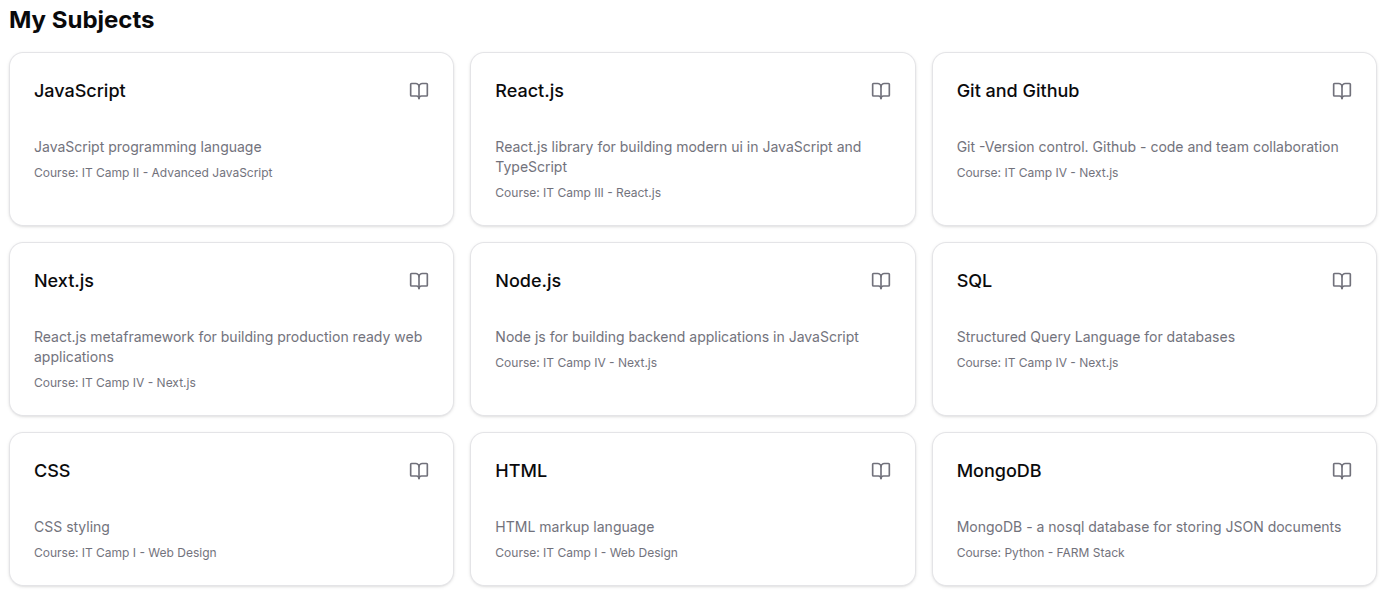
- See a card for each subject assigned to you:
- Subject Name – The title of the subject you teach
- Description – What the subject covers
- Course – Which course or program it's part of
- Click on a subject card to see its full details and connected features.
Understanding Subject Responsibilities
- You are responsible for planning, delivering, and tracking lessons within your assigned subjects.
- If you teach one subject to multiple classes, you'll see all relevant links and stats consolidated in the subject view.
- Use this page to quickly find your upcoming teaching workload, related classes, and student groups by subject.
Subject Roles
Your role for each subject (lead, co-teacher, etc.) may affect access to certain features, such as lesson editing or grade assignment.
Accessing Subject Details
- Click any subject card on the Subjects page.
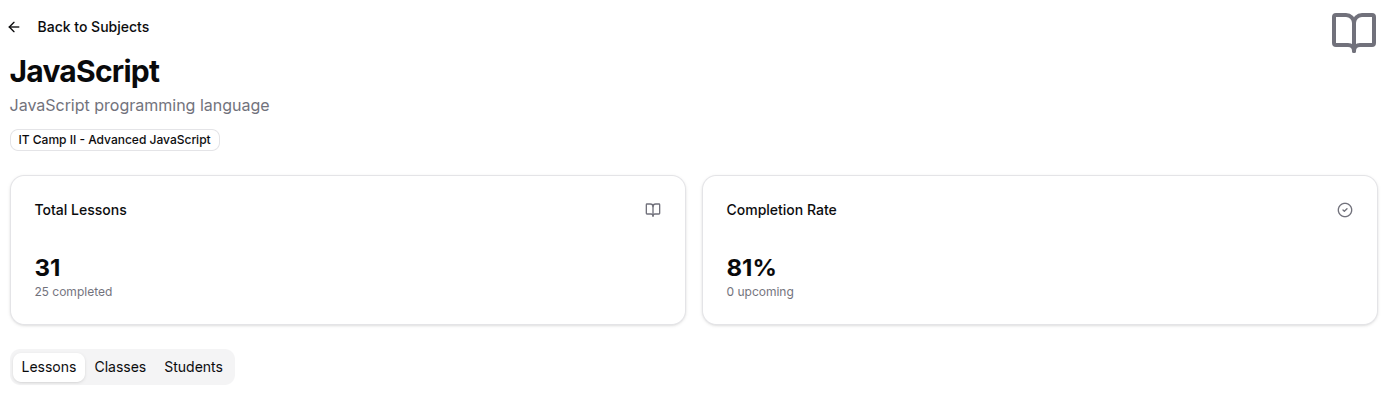
- You’ll be taken to the Subject Detail Page, which shows:
- The subject's name and description
- Connected course/program
- Overview stats: total, completed, upcoming lessons
- Tabs for Lessons, Classes, and Students
Working with Lessons (Lessons Tab)
- Click the Lessons tab.
- Browse:
- Upcoming Lessons: next scheduled lessons for the subject
- Completed Lessons: finished lessons for review
- Each lesson shows the class, schedule, description
- Use Show More/Show Less for long lesson lists.

Exploring Linked Classes (Classes Tab)
- Switch to the Classes tab.
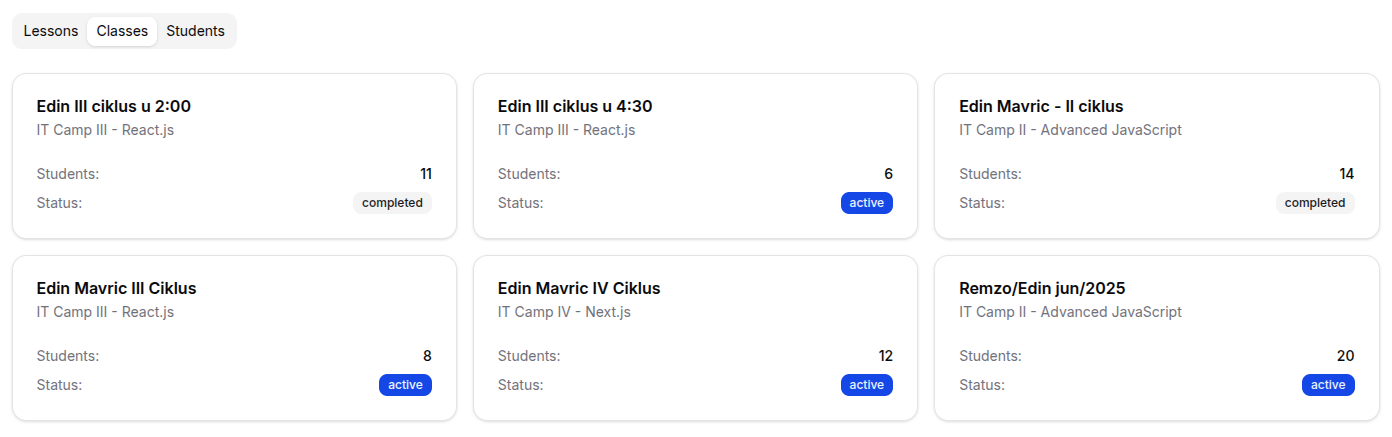
- See all classes to which the subject is taught.
- Each card lists:
- Class Name
- Students Count
- Status (Active, Inactive, etc.)
- Click any class for more info, or to see its full teaching context.
Viewing Enrolled Students (Students Tab)
- Open the Students tab.
- Review lists of all students currently in classes for your subject.
- Each student entry provides:
- Full name and email
- Their class
- Link to full student profile

For Organization Types
Bootcamp subjects may include features like: - Assignments tracking for project and coding tasks - Submission deadlines for homework and in-class exercises - Portfolio building info per subject
Sports Academy subjects may offer: - Performance metrics for tracked activities - Assessment results linked to sport-specific skills - Injury or health notes relevant per subject
Madrasa subjects may add: - Quran progress or Tajweed-specific notes by subject - Recitation quality and participation records - Special class groupings for religious/Arabic focus
Tips
- Bookmark favorite subjects for frequent access.
- Use the Show More button to explore full lists of lessons or students.
- Return to the Subjects list using the "Back to Subjects" button at the top.
- Filter classes or lessons if you teach multiple at once.
- Use student links for fast review of student academic info.
- If a subject is missing, check with your admin—assignments are managed centrally.