Lesson Templates & My Timetable
Create reusable lesson templates and view your weekly teaching schedule.
The Lesson Templates & My Timetable features help teachers streamline lesson planning and manage their teaching schedule. Lesson Templates allow you to create reusable lesson plans, while My Timetable shows your weekly availability set by administrators.
Efficient Teaching Management
Use lesson templates to save time on planning and view your timetable to understand your weekly teaching schedule and availability.
- Why this matters: Templates save time on lesson planning and ensure consistency, while timetables help you understand your schedule and plan accordingly.
- Who uses it: Teachers who want to create efficient lesson plans and need to view their teaching schedule.
- When to use it: When planning lessons, creating reusable content, or checking your weekly availability and teaching times.
How to Use
My Timetable (Weekly baseline + Exceptions)
The timetable has two parts:
- Weekly (baseline, read‑only): Your base availability for each weekday, configured by admins. Use it to plan; you cannot edit the baseline here.
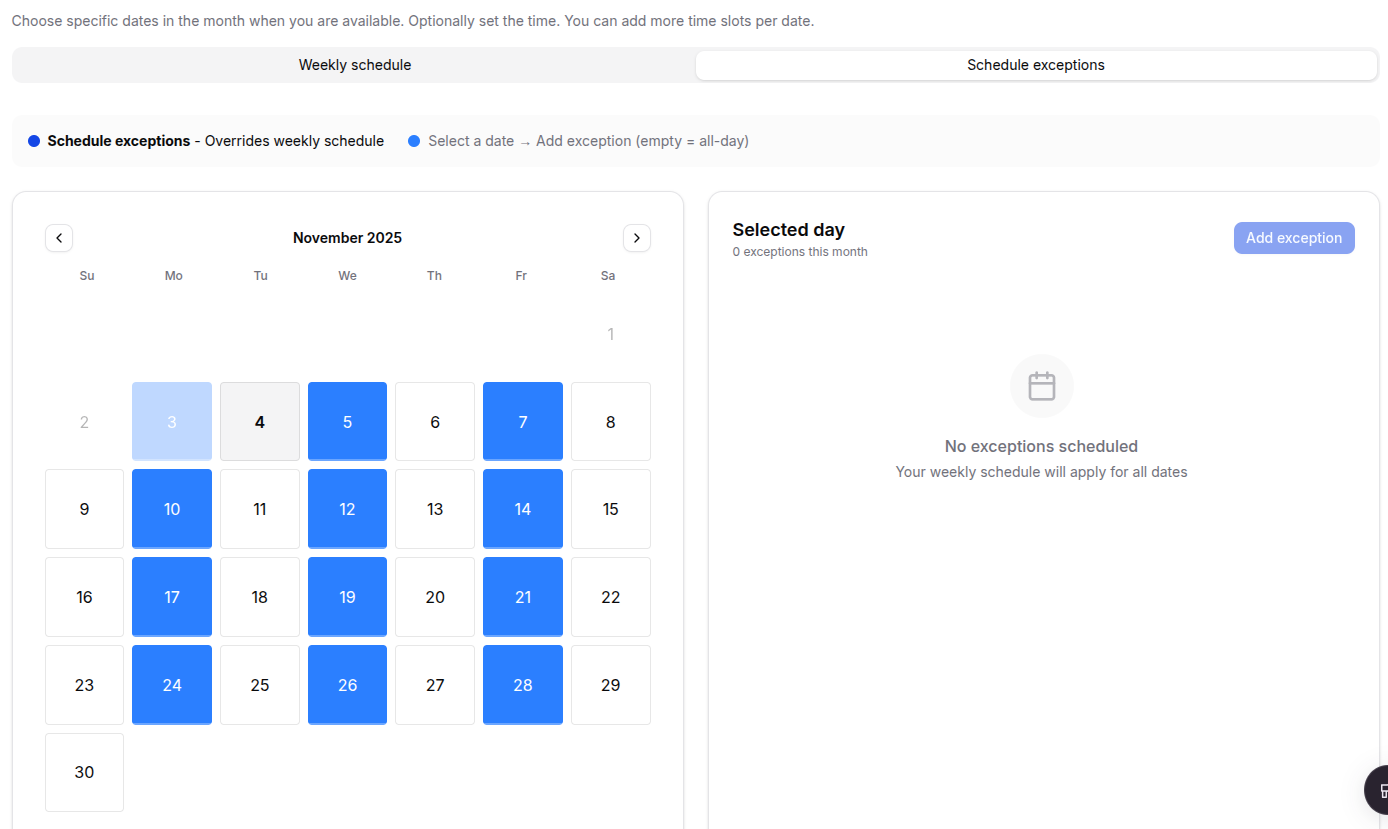
- Monthly (exceptions, teacher-managed): Optional overrides for specific calendar dates. You can add a one-day exception as All‑day available or set custom From/To times.
Accessing your timetable
- Open My Timetable from the teacher left sidebar.
- Use the tabs at the top to switch between Weekly schedule and Exceptions (Monthly) scehduling.

Weekly (baseline)
- Shows each weekday with time chips (e.g., 09:00–12:00) if configured by admins.
- A legend clarifies colors for base schedule and overrides.
- Teachers typically have read‑only access; contact admins for baseline changes.

Monthly (exceptions)
Use this when a specific date differs from your weekly baseline (e.g., shortened availability or a day‑off).
Steps:
- Switch to the Monthly tab.
- Click a future date in the calendar to select it.
- Click Add Exception.
- In the dialog, either:
- leave times empty to mark it as All‑day available, or
- set precise From and To times for that date.
- Save. The calendar and the exceptions list on the right will update.
- To adjust later, choose the date and use Edit time or Remove in the list.
Notes:
- Exceptions affect only the selected date and do not change your weekly baseline.
- Past dates are locked; plan exceptions in advance.
Lesson Templates
Lesson Templates allow you to create reusable lesson plans that can be used multiple times, saving you time and ensuring consistency in your teaching.
Accessing Lesson Templates
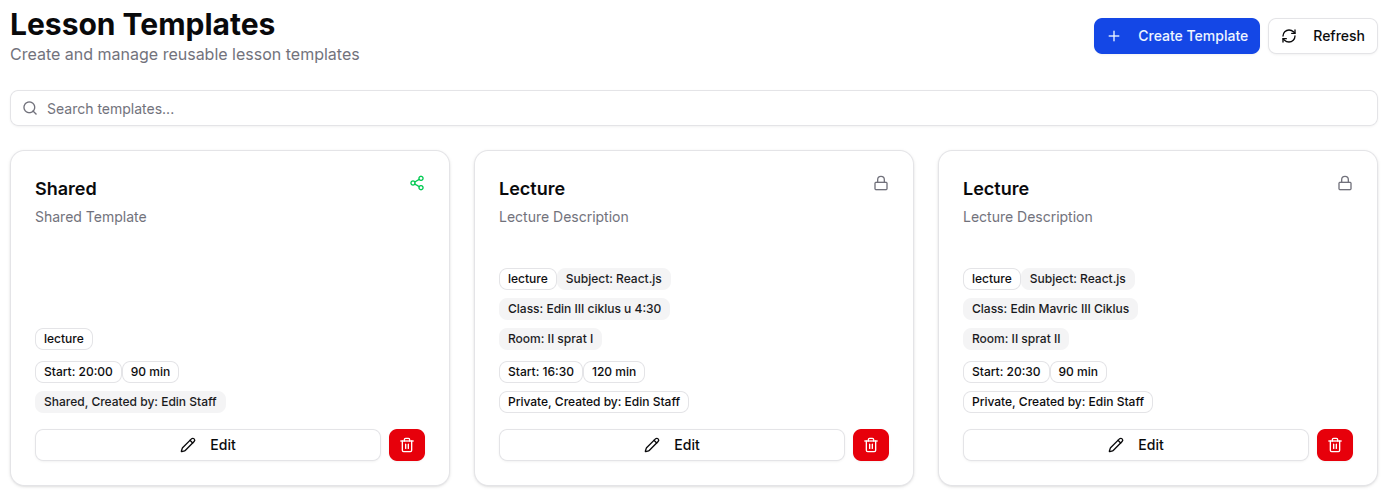
- Navigate to Templates: From your teacher dashboard, click "My Lesson Templates" in the sidebar.
- View Template Library: See all available templates (yours and shared ones).
- Search and Filter: Find specific templates using the search functionality.
Template Types and Visibility
Private Templates:
- Personal Use: Only you can see and use these templates
- Lock Icon: Indicated by a lock icon in the template card
- Full Control: You can edit, delete, and modify as needed
- Default Setting: Templates are private by default
Shared Templates:
- Team Access: Other teachers in your organization can see and use these templates
- Share Icon: Indicated by a share icon in the template card
- Collaborative: Helps maintain consistency across the organization
- Optional Setting: You choose whether to make templates shared

Creating Lesson Templates
Starting a New Template:
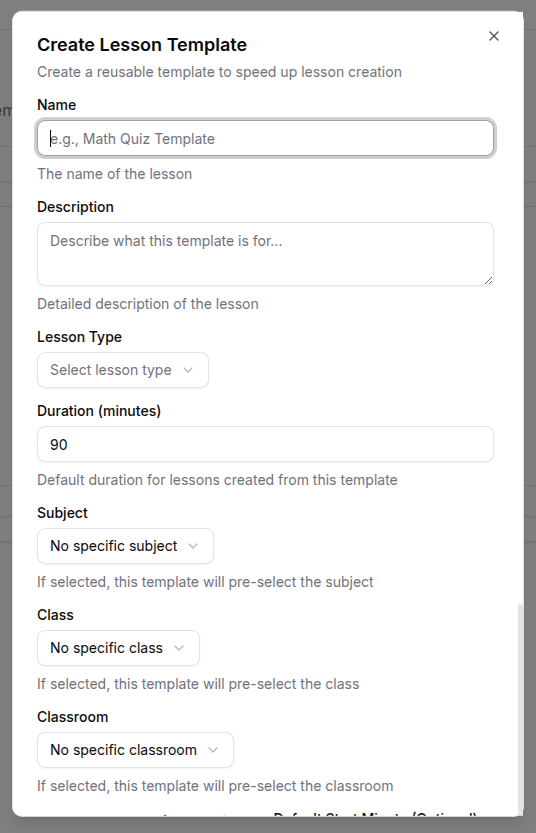
- Click "Create Template": Use the create button to start a new template.

- Fill Template Details:
- Template Name: Descriptive name for easy identification
- Description: Brief explanation of the template's purpose
- Template Type: Category or type of lesson
- Subject: Which subject this template is for
- Set Default Values:
- Default Class: Which class this template is typically used for
- Default Classroom: Preferred classroom for this type of lesson
- Default Start Time: Typical start hour and minute
- Duration: How long the lesson typically lasts (in minutes)
- Choose Visibility:
- Private: Keep template for personal use only
- Shared: Make available to other teachers
- Save Template: Create the template for future use.
Managing Your Templates
Viewing Template Information:
- Template Cards: Each template shows key information at a glance
- Name and Description: Quick identification of template purpose
- Subject and Class: Default settings for easy reference
- Time Information: Default start time and duration
- Visibility Status: Private (lock) or Shared (share icon)
- Creator Information: Who created the template
Template Actions:
- Edit Template: Modify any aspect of the template
- Delete Template: Remove templates you no longer need
- Use Template: Apply template when creating new lessons
- Search Templates: Find specific templates quickly
Editing Templates:
- Click Edit Button: Select the pencil icon on any template card
- Modify Information: Update any field in the template
- Change Visibility: Switch between private and shared
- Save Changes: Confirm updates to the template
Deleting Templates:
- Click Delete Button: Select the trash icon on the template card
- Confirm Deletion: Confirm you want to permanently remove the template
- Template Removed: The template is permanently deleted

Using Templates for Lesson Creation
Applying Templates:
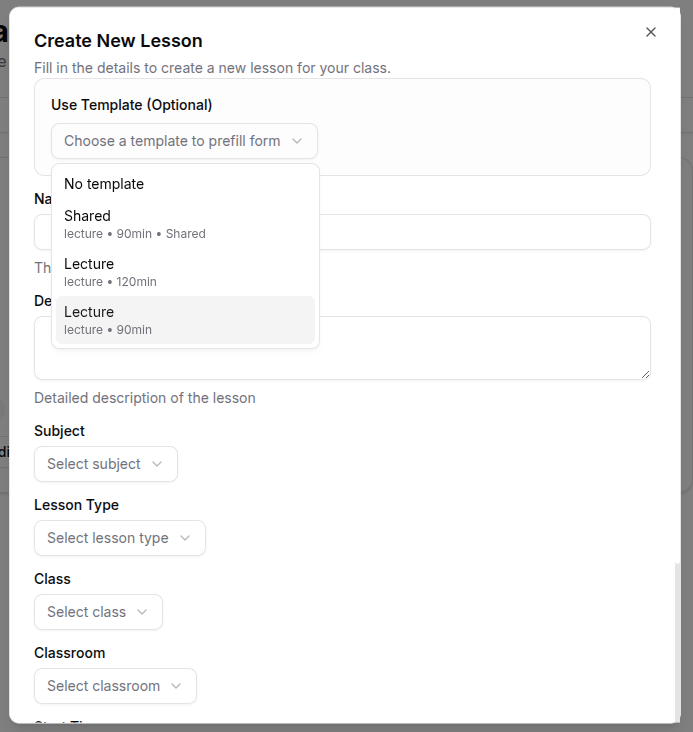
- During Lesson Creation: When creating a new lesson, you can select a template
- Auto-Fill Information: Template automatically fills in default values
- Customize as Needed: Modify any pre-filled information for the specific lesson
- Save Lesson: Create the lesson with template-based information
Template Benefits:
- Time Saving: Avoid re-entering common lesson information
- Consistency: Maintain standard lesson structure and timing
- Quality Assurance: Use proven lesson formats
- Collaboration: Share effective lesson structures with colleagues
Searching and Filtering Templates
Search Functionality:
- Search Bar: Use the search field to find templates by name, description, or type
- Real-Time Results: Results update as you type
- Multiple Criteria: Search across name, description, and template type
- Clear Search: Remove search terms to see all templates
Template Organization:
- Personal Templates: Templates you've created
- Shared Templates: Templates shared by other teachers
- Subject-Specific: Templates organized by subject area
- Type Categories: Templates grouped by lesson type
For Organization Types
Lesson Templates: - Coding Session Templates: Standard formats for programming lessons - Project Review Templates: Structured approach to code reviews - Technical Workshop Templates: Hands-on coding workshop formats - Assessment Templates: Coding challenge and technical test formats Timetable Usage: - Coding Block Scheduling: Extended time slots for programming sessions - Project Time: Dedicated periods for individual coding work - Review Sessions: Scheduled times for code review and feedback
Lesson Templates: - Training Session Templates: Standard athletic training formats - Skill Development Templates: Focused skill-building lesson plans - Competition Prep Templates: Pre-competition training sessions - Fitness Assessment Templates: Physical evaluation and testing formats Timetable Usage: - Training Blocks: Extended periods for intensive athletic training - Skill Sessions: Shorter, focused skill development periods - Recovery Time: Scheduled rest and recovery periods
Lesson Templates: - Quran Recitation Templates: Structured Quran reading and memorization - Islamic Studies Templates: Religious education lesson formats - Arabic Language Templates: Language learning session structures - Character Development Templates: Moral and ethical education formats Timetable Usage: - Prayer Time Scheduling: Timetable aligned with daily prayer times - Memorization Sessions: Dedicated periods for Quran memorization - Study Circles: Group discussion and learning periods
Tips
Lesson Template Best Practices:
- Descriptive Names: Use clear, descriptive names for easy identification
- Detailed Descriptions: Include enough detail to understand the template's purpose
- Realistic Timing: Set accurate default durations based on actual lesson needs
- Regular Updates: Review and update templates based on teaching experience
- Share Effective Templates: Make successful templates available to colleagues
- Organize by Subject: Create templates for each subject you teach
- Version Control: Keep track of template changes and improvements
Timetable Management:
- Regular Review: Check your timetable regularly for any administrative updates
- Plan Ahead: Use timetable information for lesson planning and preparation
- Communicate Changes: Contact administrators if you notice scheduling conflicts
- Backup Planning: Have flexible lesson plans for unexpected timetable changes
- Time Management: Use timetable to optimize your teaching schedule
Template Usage Strategies:
- Start Simple: Begin with basic templates and add complexity over time
- Test Templates: Try templates with different classes to ensure effectiveness
- Collect Feedback: Ask students and colleagues for input on template-based lessons
- Customize Appropriately: Adapt templates to specific class needs and contexts
- Maintain Library: Keep your template library organized and up-to-date
Collaboration Tips:
- Share Best Practices: Share effective templates with your teaching team
- Learn from Others: Use shared templates created by experienced colleagues
- Provide Feedback: Give constructive feedback on shared templates
- Maintain Standards: Ensure shared templates meet organizational quality standards