Student Health Records & Personal Metrics
Track and manage student health information and personal performance metrics from the student detail page.
The Student Health Records & Personal Metrics features allow teachers to track important health information and personal performance metrics for individual students. These tools are accessed from the student detail page and help monitor student well-being and progress over time.
Student Health & Performance Tracking
Monitor student health records and personal metrics to ensure their well-being and track their development progress throughout their academic journey.
- Why this matters: Tracking health records and personal metrics helps ensure student safety, monitor development, and identify trends that may affect academic performance.
- Who uses it: Teachers, coaches, and health coordinators who need to monitor student health and personal development metrics.
- When to use it: Regularly to update health information, track growth metrics, monitor athletic performance, or record important health changes.
How to Use
Accessing Health Records & Metrics
- Navigate to Student Details: From your students list, click on any student to open their detail page.

- Find Health & Metrics Buttons: On the student detail page, look for the "Health Records" and "Metrics" buttons on the top right side.

- Choose Your Tool: Click the appropriate button based on what you want to track:
- Health Records: For medical information, physical measurements, and health history
- Personal Metrics: For performance tracking, skill development, and progress monitoring
Student Health Records
The Health Records section helps you track important medical and physical information for students.
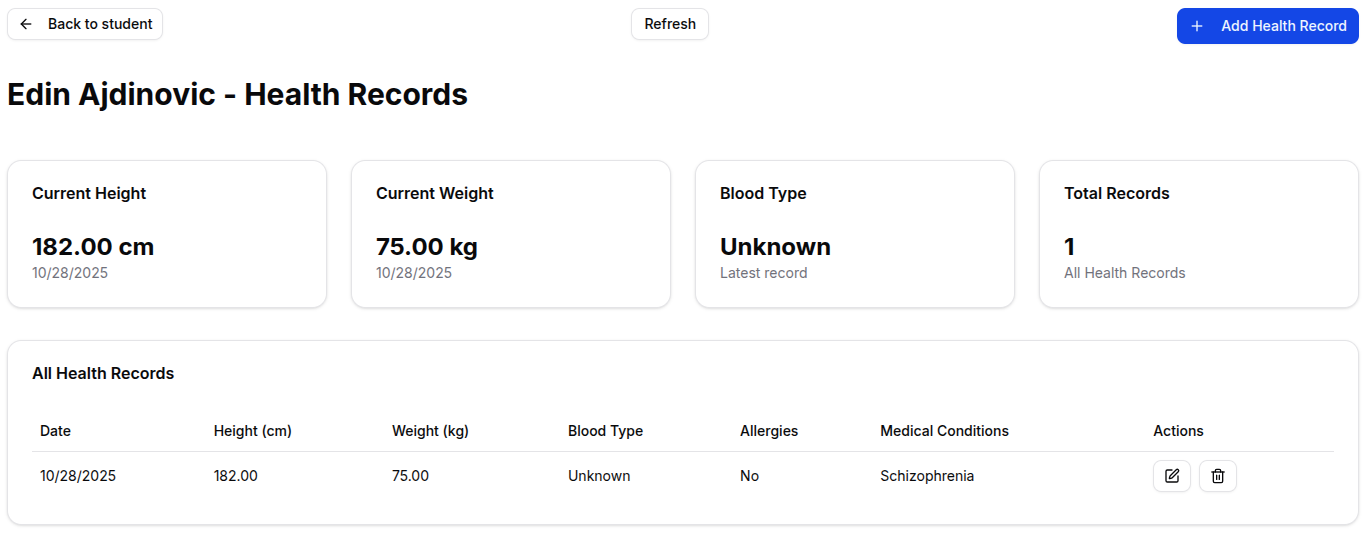
Accessing Health Records
- From Student Detail Page: Click the "Health Records" button on the student's profile page.
- View Health Dashboard: See an overview of the student's current health information and records.
Health Records Features
Summary Cards Display:
- Current Height: Latest height measurement in centimeters
- Current Weight: Latest weight measurement in kilograms
- Blood Type: Student's blood type information
- Total Records: Number of health records on file

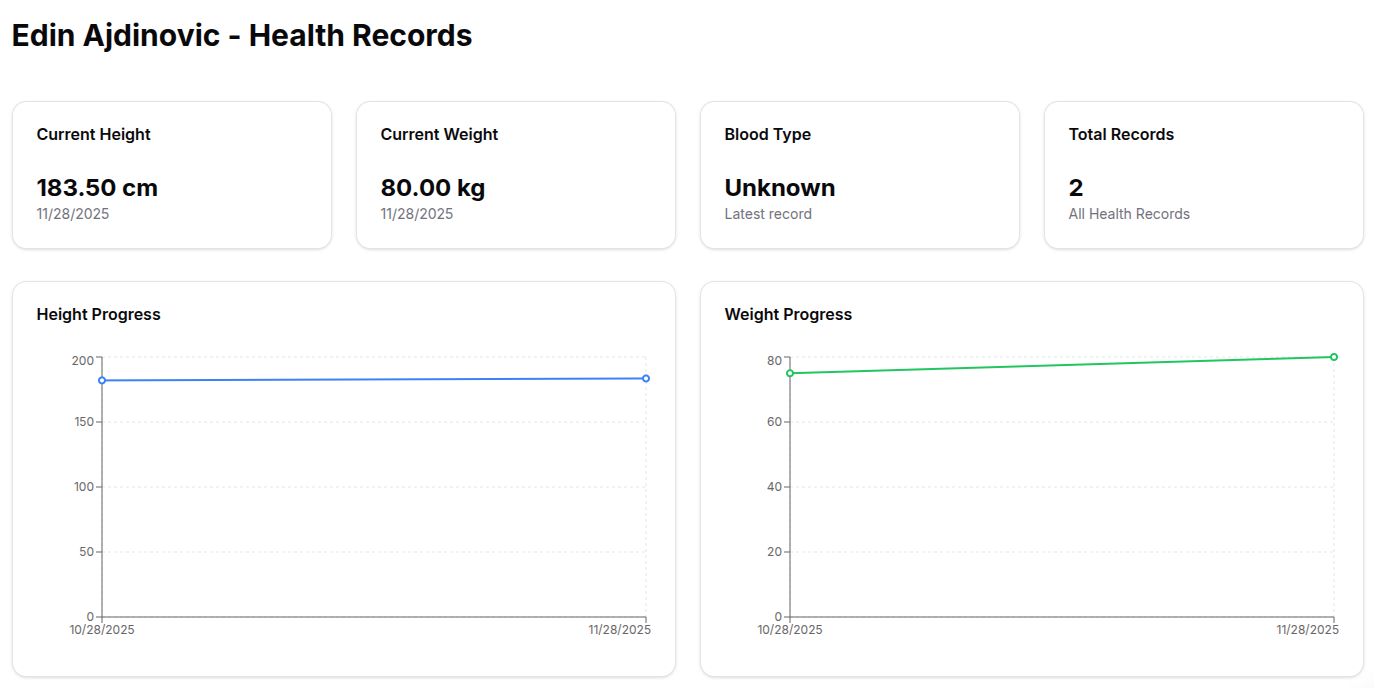
Health Progress Charts:
- Height Progress: Line chart showing height growth over time
- Weight Progress: Line chart showing weight changes over time
- Visual Tracking: Easy-to-read charts that show development trends
Managing Health Records
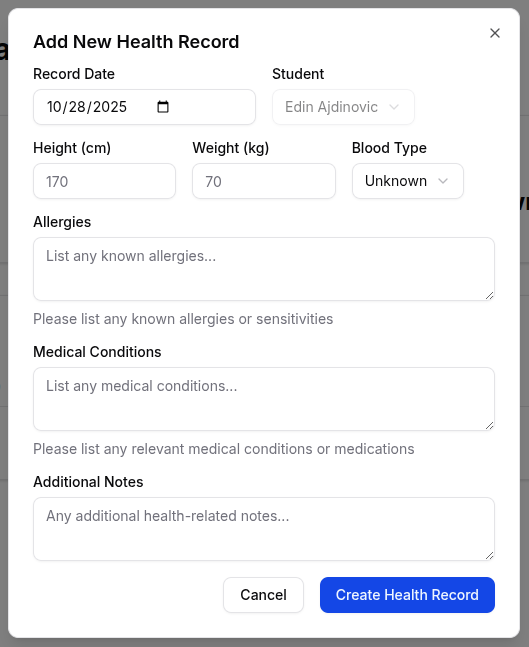
Adding New Health Records:
- Click "Add Health Record": Use the add button to create a new health record entry.
- Fill Required Information:
- Record Date: When the measurements were taken
- Height (cm): Student's height in centimeters
- Weight (kg): Student's weight in kilograms
- Blood Type: Blood type information (A+, B+, O+, AB+, etc.)
- Optional Information:
- Allergies: List any known allergies
- Medical Conditions: Note any medical conditions or concerns
- Additional Notes: Any other relevant health information
- Save Record: Click save to add the record to the student's health history.
Viewing Health Records Table:
- Complete History: View all health records in chronological order
- Record Details: See date, measurements, blood type, allergies, and medical conditions
- Quick Reference: Easily compare measurements over time
Editing Health Records:
- Edit Button: Click the edit icon next to any health record
- Update Information: Modify any field in the health record
- Save Changes: Confirm updates to the health record
Deleting Health Records:
- Delete Button: Click the delete icon next to any health record
- Confirm Deletion: Confirm you want to remove the record permanently
- Record Removed: The health record is permanently deleted
NOTE: Actions are always at the end of the tables rows, for more information see Tables Guide
Personal Metrics
The Personal Metrics section allows you to track custom performance indicators and development metrics for students.
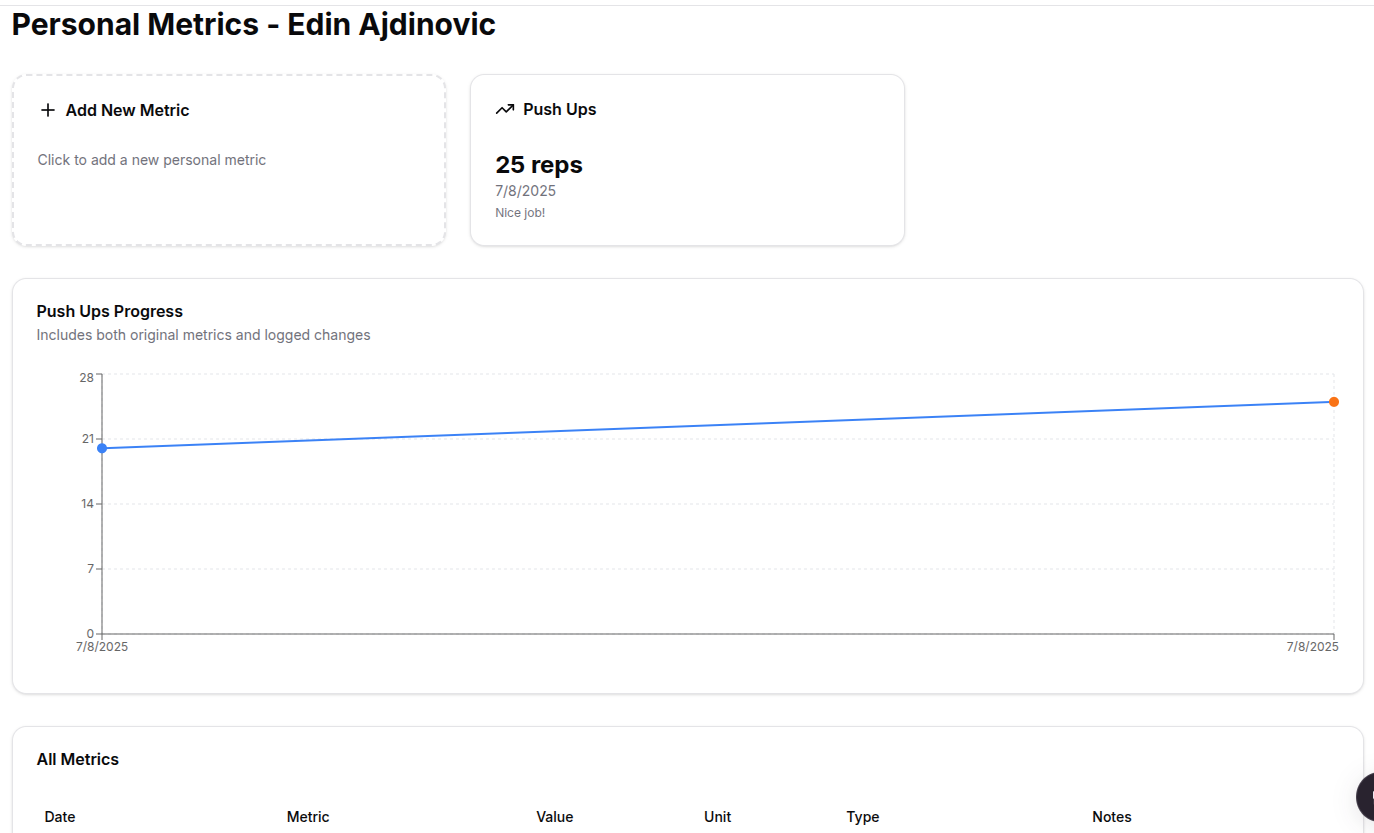
Accessing Personal Metrics
- From Student Detail Page: Click the "Metrics" button on the student's profile page.
- View Metrics Dashboard: See an overview of all tracked metrics for the student.
Personal Metrics Features
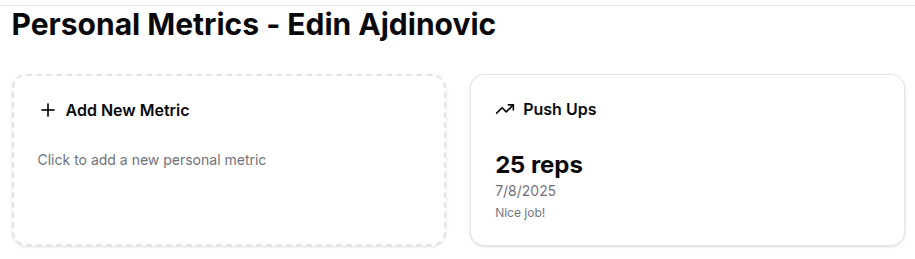
Metric Cards Display:
- Add New Metric: Create new types of metrics to track
- Current Metrics: View the latest values for each metric type
- Metric Progress: See recent changes and trends
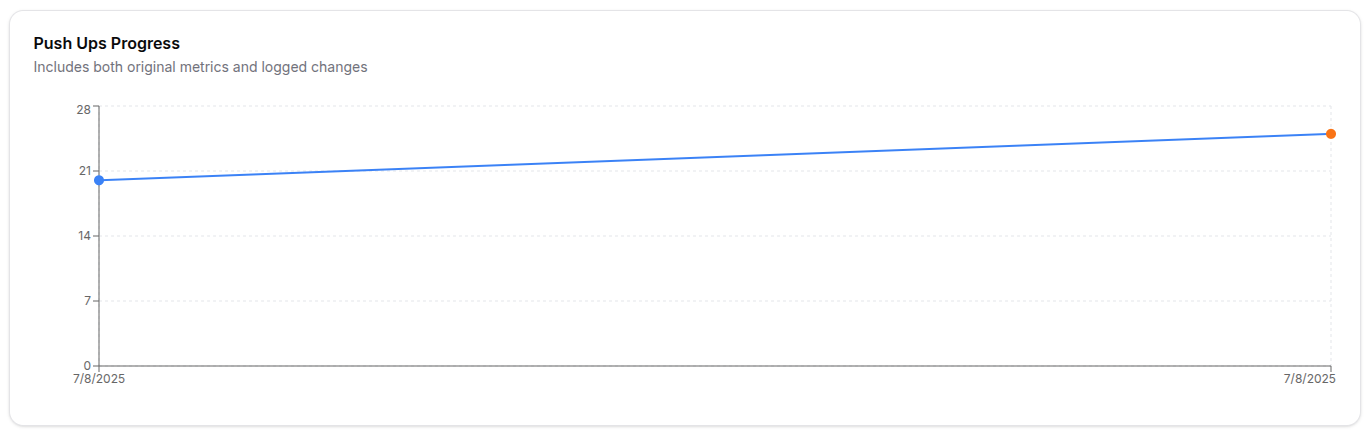
Progress Visualization:
- Line Charts: Visual representation of metric changes over time
- Trend Analysis: Identify improvement or decline patterns
- Data Points: Original metrics and updated logs shown on charts
Managing Personal Metrics
Creating New Metrics:
- Click "Add New Metric": Use the add metric card to create a new metric type.
- Define Metric Details:
- Metric Name: What you're tracking (e.g., "Reading Speed", "Push-ups", "Focus Time")
- Value: Initial measurement or score
- Unit: Unit of measurement (minutes, repetitions, points, etc.)
- Value Type: Type of data (numeric, percentage, etc.)
- Notes: Additional context or observations
- Save Metric: Create the new metric for ongoing tracking.

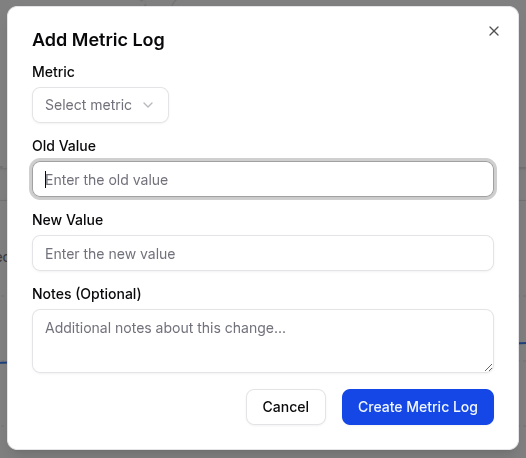
Adding Metric Logs (Updates):
- Click "Add Metric Log": Update existing metrics with new measurements.
- Select Metric: Choose which metric you want to update.
- Enter New Value: Record the new measurement or score.
- Add Notes: Include observations about the change or context.
- Save Log: The update is added to the metric's history.
Viewing Metrics Tables:
- All Metrics Table: See all original metric entries with dates, values, and notes.
- Metric Change History: View all updates and changes made to metrics over time.
- Progress Tracking: Compare old and new values to see improvement trends.
Understanding Metric Types
Academic Metrics:
- Reading speed (words per minute)
- Math problem completion time
- Focus duration during lessons
- Assignment completion rate
Physical Metrics:
- Fitness test results
- Sports performance scores
- Endurance measurements
- Skill-specific improvements
Behavioral Metrics:
- Participation frequency
- Collaboration scores
- Leadership demonstrations
- Social interaction quality
For Organization Types
Health Records:
- Track ergonomic health for long coding sessions
- Monitor eye strain and posture-related issues
- Record any repetitive strain injuries
Personal Metrics:
- Coding speed (lines per hour, problems solved)
- Technical skill progression
- Project completion times
- Debugging efficiency improvements
- Code quality scores
Health Records:
- Track athletic injuries and recovery
- Monitor growth and physical development
- Record medical clearances for sports participation
- Track nutrition and hydration needs
Personal Metrics:
- Athletic performance scores
- Strength and endurance measurements
- Speed and agility improvements
- Skill-specific progress (shooting accuracy, lap times)
- Competition results and rankings
Health Records:
- Monitor general health and development
- Track any health issues affecting attendance
- Record vaccination status and medical needs
Personal Metrics:
- Quran memorization progress (verses, chapters)
- Recitation quality improvements
- Arabic language proficiency
- Islamic knowledge assessments
- Prayer attendance and participation
Tips
Health Records Best Practices:
- Regular Updates: Record health measurements at consistent intervals (monthly or quarterly)
- Accurate Data: Ensure measurements are taken properly and recorded accurately
- Privacy Protection: Keep health information confidential and secure
- Parent Communication: Share relevant health information with parents when appropriate
- Emergency Information: Ensure critical health information is easily accessible
- Growth Tracking: Use charts to identify normal growth patterns or concerns
Personal Metrics Best Practices:
- Meaningful Metrics: Choose metrics that relate to student goals and development
- Consistent Tracking: Record metrics regularly for accurate trend analysis
- Student Involvement: Include students in setting and tracking their own metrics
- Positive Focus: Use metrics to celebrate improvements and progress
- Goal Setting: Help students set realistic targets based on their metrics
- Data-Driven Decisions: Use metric trends to adjust teaching strategies and support
General Tips:
- Documentation: Keep detailed notes about context and circumstances
- Trend Analysis: Look for patterns that might indicate need for intervention or support
- Collaboration: Share relevant information with other teachers, parents, and health professionals
- Technology Use: Take advantage of charts and visual tools to understand data better
- Student Privacy: Always maintain confidentiality and follow privacy guidelines